
OpenAI ChatGPT Translation Channel
What is it?
OpenAI's ChatGPT is one of the most well-known AI language models worldwide, offering excellent translation quality. pyVideoTrans connects to ChatGPT through an OpenAI-compatible interface, supporting both the official OpenAI API and third-party relay API services.
Prerequisites
- pyVideoTrans software
- An OpenAI account (free accounts can access the API, but with strict rate limits) or a third-party relay service account
Option 1: Using the Official OpenAI API
Getting an API Key (SK)
Step 1: Go to https://platform.openai.com and click "Log in" in the top-right corner

Step 2: After logging in, click the lock icon on the left to view API information

Step 3: On the right side, click "Create new secret key" to create a Secret Key (SK)


Step 4: After verification, a dialog will appear with your Secret Key. This key is only shown once — copy and save it immediately before closing the dialog!

Configuring in pyVideoTrans
- Click the Settings menu in the top-left corner → OpenAI/ChatGPT
- Enter your copied Secret Key in the SK field
- Leave the API URL empty (not needed when using the official account)
- Select a model (e.g.,
gpt-4o,gpt-4o-mini, etc.) - Click Test, then save after success

Free account limitations: Free ChatGPT accounts can use the API, but are limited to roughly 3 requests per minute. Exceeding the limit causes various errors. Consider upgrading to a paid account or using a third-party relay service for a better experience.
Option 2: Using a Third-Party Relay API
There are many third-party relay services available — quality varies and some may shut down unexpectedly. Choose at your own discretion; we do not make specific recommendations.
Getting the Key and API URL
Step 1: Register on your chosen third-party platform and create an API key

Step 2: Copy the key and paste it into pyVideoTrans's SK text box

Step 3: Obtain the API URL from the third-party provider (from their documentation or support), and enter it into the "API URL" text box

Result after filling in:

Key information: Regardless of which third-party API service you use, the two essential pieces of information are: ① the secret key (SK / Secret Key) and ② the third-party API URL address.
Recommended Configuration
| Setting | Official API | Third-Party Relay |
|---|---|---|
| API URL | Leave empty | Enter the third-party URL |
| SK | From OpenAI platform | From the third-party platform |
| Model | gpt-4o, gpt-4o-mini | Depends on third-party support |
| Max Output Tokens | 8192 (default) | Adjust as needed |
Important Notes
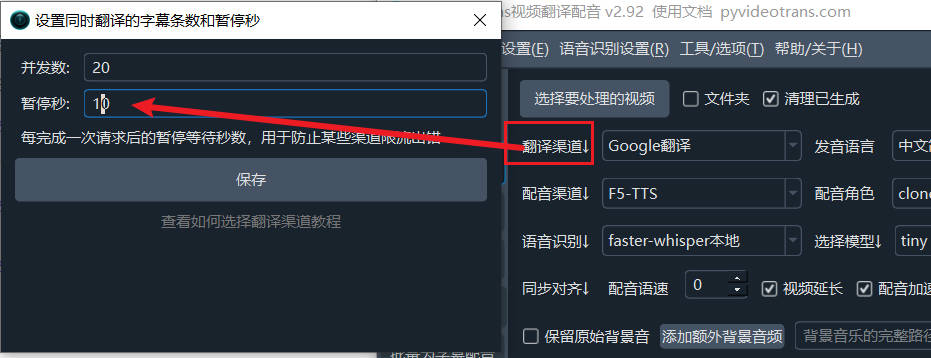
Request rate limits: Most AI translation channels may limit the number of requests per minute. If you see rate limit errors, click "Translation Channel ↓" on the main interface and set the pause seconds to 10, which means a 10-second wait after each translation — capping at 6 requests per minute to avoid exceeding limits.
Excessive blank lines in output: If the model you selected is not intelligent enough (especially smaller locally deployed models), it may fail to follow formatting instructions properly, resulting in many blank lines. You can try:
- Using a larger model
- Going to Menu → Tools/Options → Advanced Options → Send full subtitle content when using AI translation, and unchecking it

Using with Immersive Translate: To use a third-party API with the "Immersive Translate" extension, append
/v1/chat/completionsto the API URL — i.e.,third-party-api-address/v1/chat/completions.
Troubleshooting
| Issue | Cause | Solution |
|---|---|---|
| "Authentication Error" | SK incorrect or expired | Re-create the secret key and enter it |
| "Insufficient balance" | Account balance too low | Top up your OpenAI account |
| Connection timeout | Incorrect API URL or network issue | Verify the API URL and check network connectivity |
| "Rate limit exceeded" | Too many requests | Increase the post-translation pause time |
| Empty translation result | Model unsupported or format issue | Try a different model, confirm API URL is correct |