
Using Local LLMs as a Translation Channel
Open-source AI models like DeepSeek and Qwen perform impressively. With tools like Ollama and LM Studio, you can easily set up a local LLM service and integrate it into the video translation software.
However, due to limited VRAM on personal computers, locally deployed models are typically smaller (1.5B, 7B, 14B, 32B, etc.), while DeepSeek's official online service uses an r1 model with 671B parameters. This huge gap means local models have limited intelligence and cannot be used as freely as online models. Doing so may lead to various issues: translation output containing prompt text, source and translated text mixed together, or garbled characters.
The root cause is that smaller models lack the capability to fully understand and follow complex prompts. Therefore, keep the following in mind when using local LLMs for video translation:
1. Correctly Configure API Settings
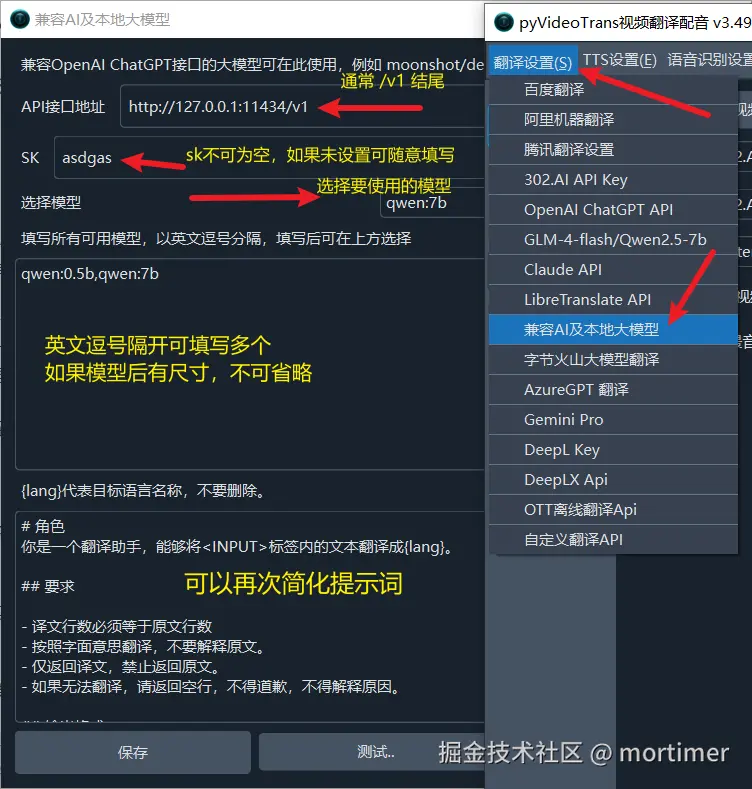
Enter your locally deployed model's API address in the API Endpoint field under Translation Settings > Compatible AI & Local LLM. The API address typically ends with /v1.
- If your API requires a key, enter it in the SK field. If not, enter any value (e.g.,
1234) — but do not leave it empty. - Enter the model name in the "Fill All Available Models" field. Note: some model names include size info (e.g.,
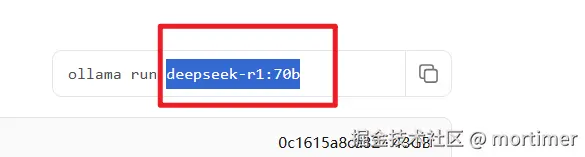
deepseek-r1:8b); make sure to include the:8bsuffix.
2. Prefer Larger and Newer Models
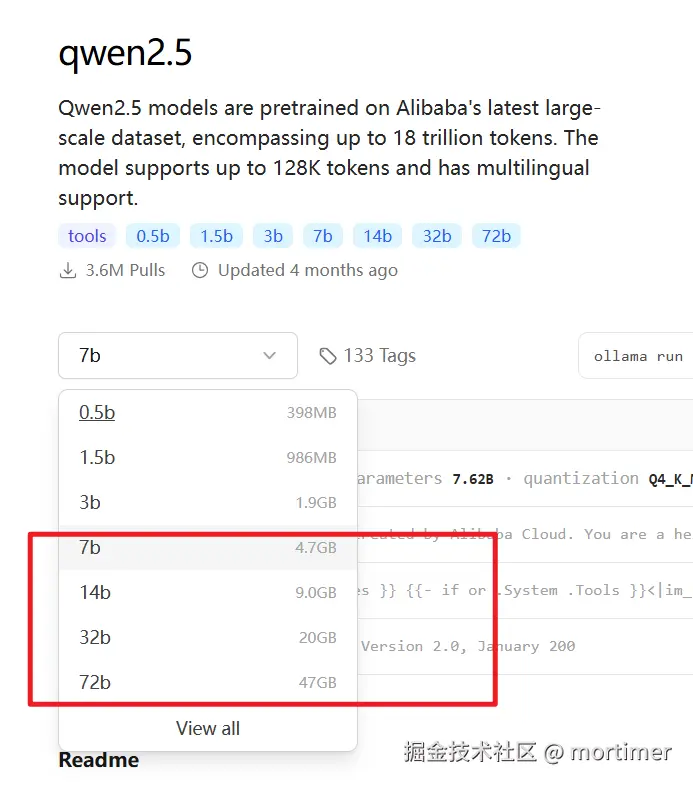
- Choose models with at least 7B parameters. If possible, go for models larger than 14B. Bigger models produce better results.
- If using Qwen models, prefer the qwen2.5 series or newer over 1.5 or 2.0 series.
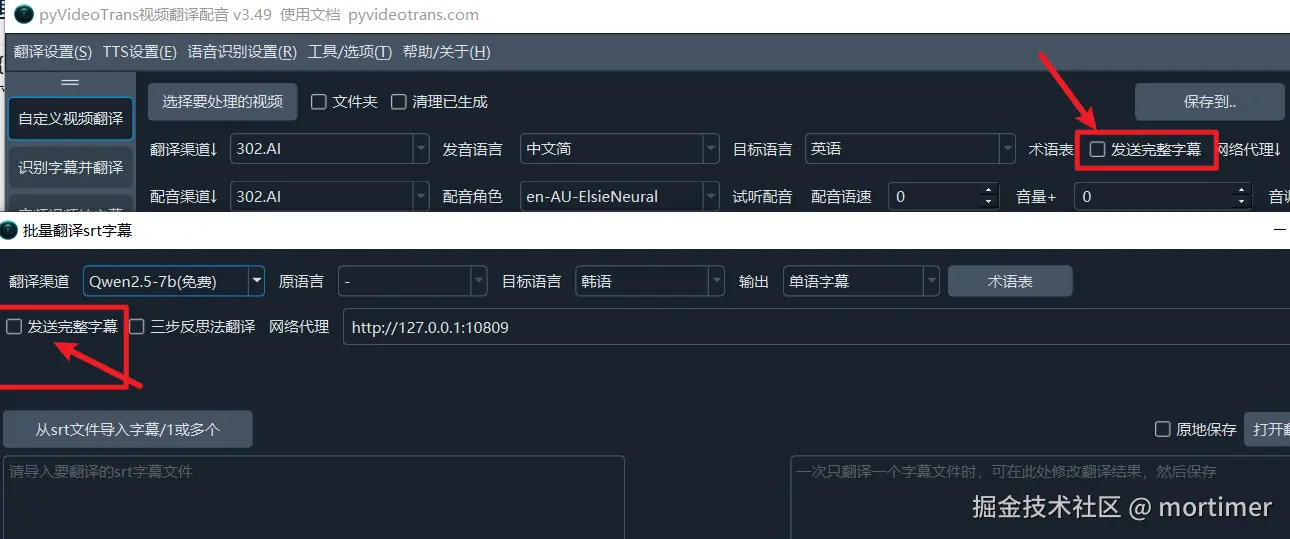
3. Uncheck "Send Full SRT"
Unless your deployed model is 70B or larger, checking "Send Full SRT" may cause translation errors. Smaller models have limited context windows; sending too much content at once overwhelms their comprehension.
4. Set Subtitle Line Count Parameters Conservatively
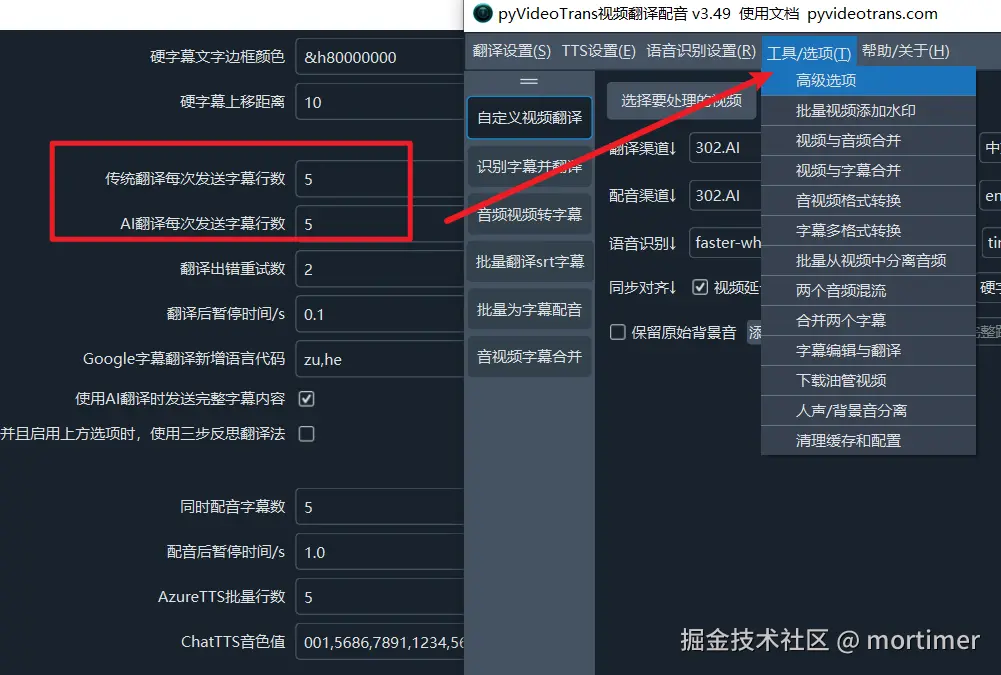
Set both "Traditional Translation Subtitle Lines" and "AI Translation Subtitle Lines" in the software to small values (e.g., 1, 5, or 10). This reduces blank lines and improves translation reliability.
Smaller values reduce the chance of errors but lower translation quality; larger values improve quality when correct but are more error-prone.
5. Simplify the Prompt
When using smaller models, they may struggle to understand or follow complex instructions. Simplifying the prompt can help.
The default prompts are located at videotrans/prompts/text/localllm.txt (line-by-line mode) or videotrans/prompts/srt/localllm.txt (full SRT mode). Try simplifying them if translation results are unsatisfactory.
Simplified Example 1
# Role
You are a translation assistant. Translate the text inside the <INPUT> tags into {lang}.

## Requirements

- The number of translated lines must equal the number of source lines
- Translate literally; do not explain the source text
- Return only the translation; never return the source text
- If you cannot translate, return empty lines. Do not apologize or explain.

## Output Format:
Output only the translation. Do not include any other text such as explanations or preamble.

<INPUT></INPUT>

Translation:Simplified Example 2
You are a translation assistant. Translate the following text into {lang}, keeping the same number of lines. Return only the translation. If you cannot translate, return empty lines.

Text to translate:
<INPUT></INPUT>

Translation:Simplified Example 3
Translate the following text into {lang}, keeping line count consistent. If you cannot translate, leave blank.

<INPUT></INPUT>

Translation:You can further simplify and refine these prompts based on your specific needs.
Note: Variables in curly braces (e.g.,
{lang}) are placeholders that the program replaces automatically. Keep these variables intact when editing prompts.
Related Documents
- Improving AI Translation Subtitle Quality — Translation mode comparison and glossary usage
- Using Local LLMs as a Translation Channel — Local LLM configuration guide
- Customizing AI Translation Prompts — Custom translation prompts
- Recommended Settings for Best Video Translation — Optimal configuration for each stage
- Why "Blank Subtitle Lines" Appear After Translation