
ElevenLabs Voice Channel
What is it?
ElevenLabs is a leading AI voice synthesis platform that delivers extremely realistic and expressive AI voices. It supports multi-language synthesis, voice cloning, and custom voice creation. It's widely regarded as one of the top AI voice services available.
Advantages:
- Free tier available
- Industry-leading voice quality
- Voice cloning support
- Multi-language support
- Custom voice creation
Registration
Step 1: Visit the Website
Open your browser and go to ElevenLabs
Step 2: Create an Account
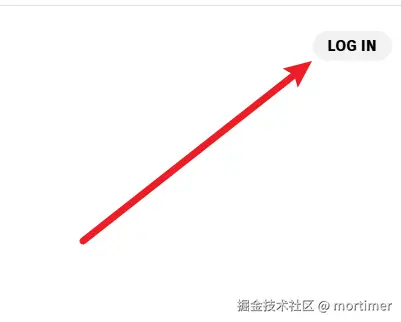
- Click LOG IN or GO TO APP in the upper right corner
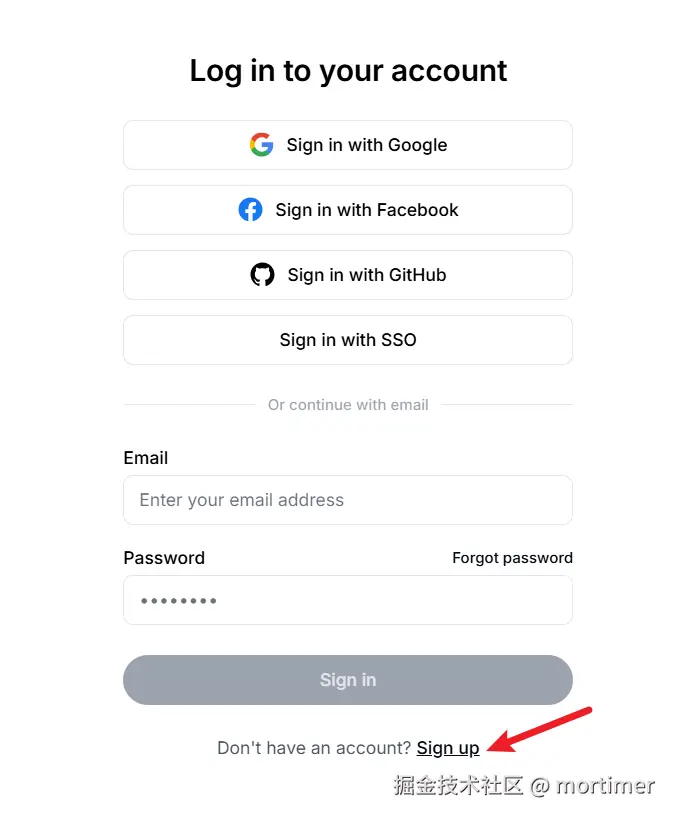
- If you already have an account or a Google/GitHub account, log in directly
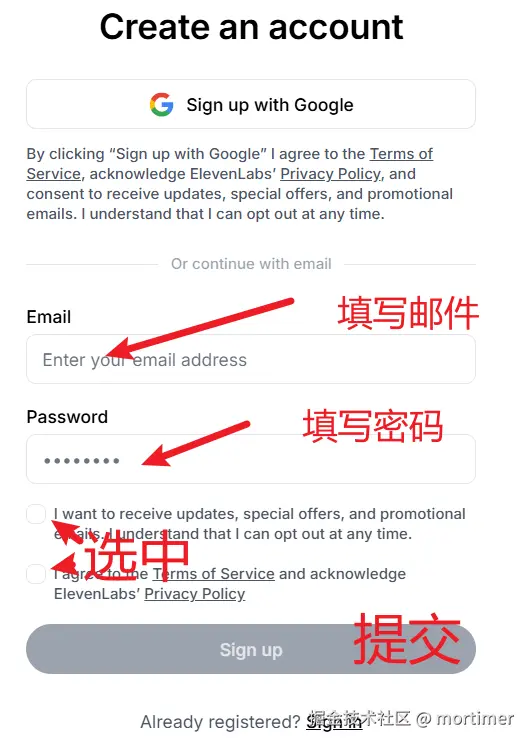
- Otherwise, click Sign up below to register
Get Your API Key
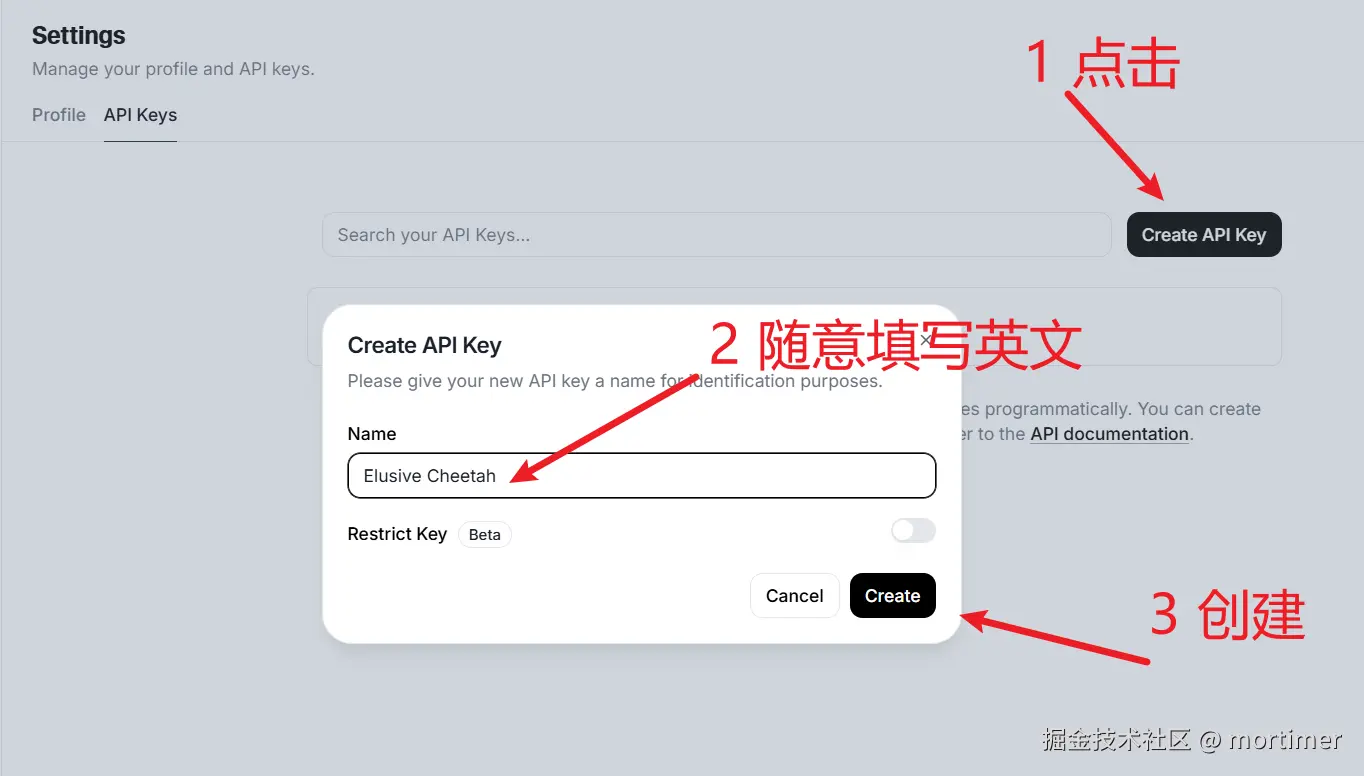
Step 1: Go to the API Keys Page
After registering and logging in, visit: https://elevenlabs.io/app/settings/api-keys
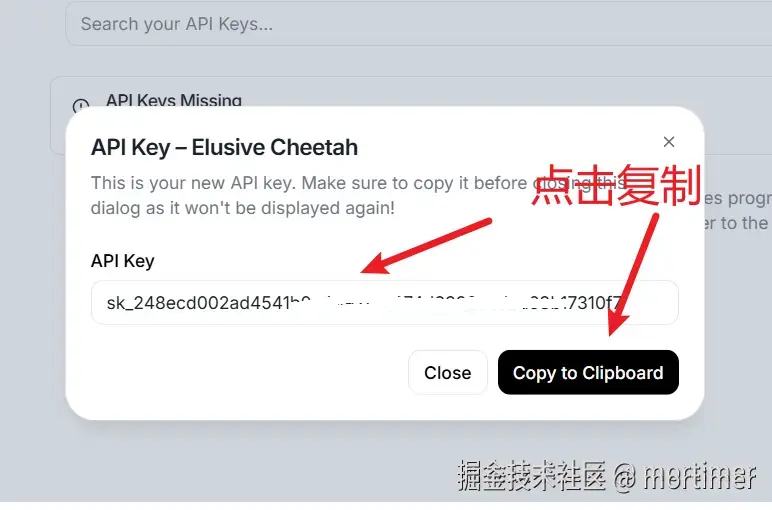
Step 2: Create and Copy the Key
- The system will automatically create an API Key
- Copy and save it immediately — the key is only shown once and won't be displayed again
Using It in pyVideoTrans
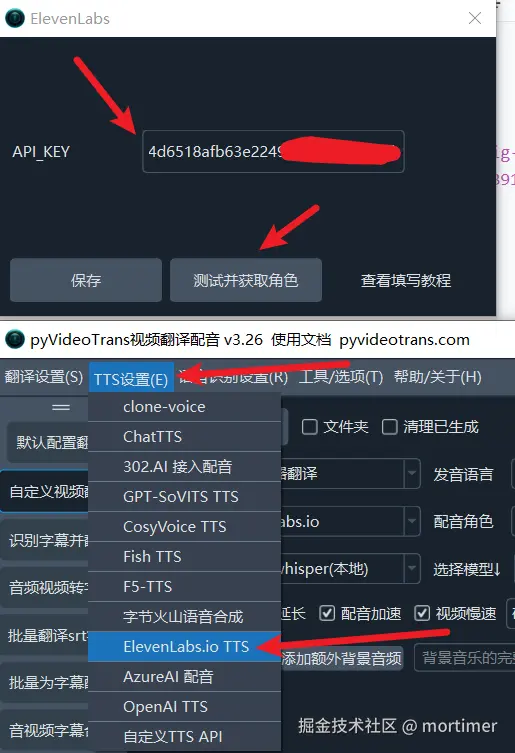
Step 1: Enter Your API Key
- Open pyVideoTrans
- Go to Menu → TTS Settings → Elevenlabs.io
- Paste the API Key you copied earlier
- Click the Test button
- If it says OK, click Save
Step 2: Select a Voice
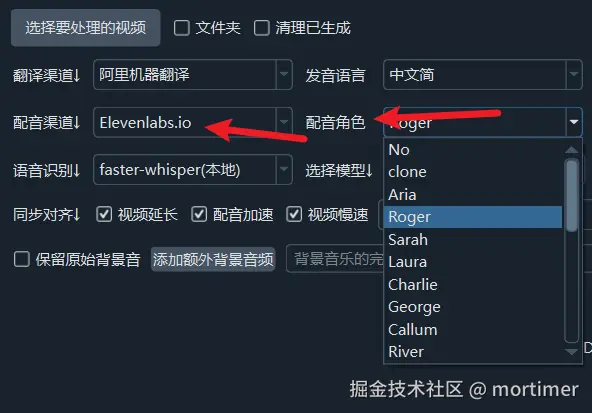
- Return to the main interface
- Select
Elevenlabs.iofrom the Voice Channel dropdown - Choose a voice from the Voice dropdown
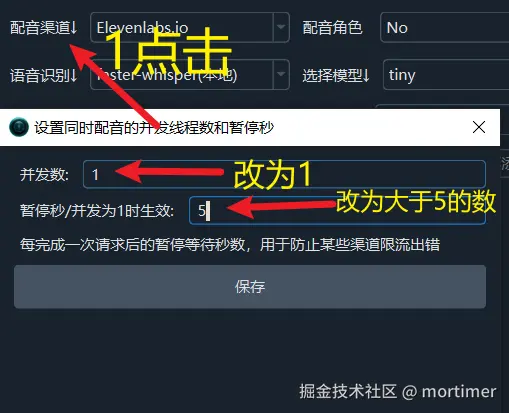
Note: Free accounts have rate limits. To avoid errors, adjust the concurrency and pause duration between dubbing requests.
Choose a Voice
ElevenLabs has thousands of voices. About a dozen are available for free by default, and you can also create your own.
Adding Voices
- Visit Voice Lab
- Browse available voices
- Click +Add to add one to your voice list
Note: Free accounts can add up to 3 custom voices
Updating the Voice List
After adding or removing voices, update the voice list in pyVideoTrans:
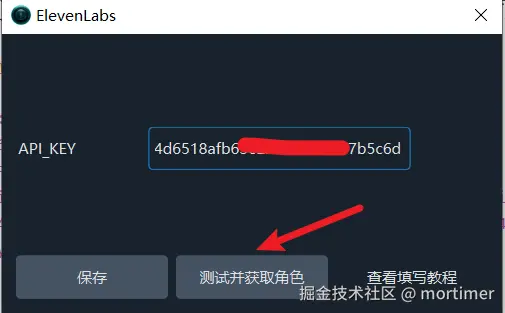
- Go to Menu → TTS Settings → Elevenlabs.io
- Click Test and Update Voices
- Wait for it to complete, then save if no errors
- On the main interface, if the current voice channel isn't
Elevenlabs.io, switch to it; if it already is, switch to another channel first, then switch back
Creating Custom Voices
If you don't find a voice you like, you can generate a new custom one:
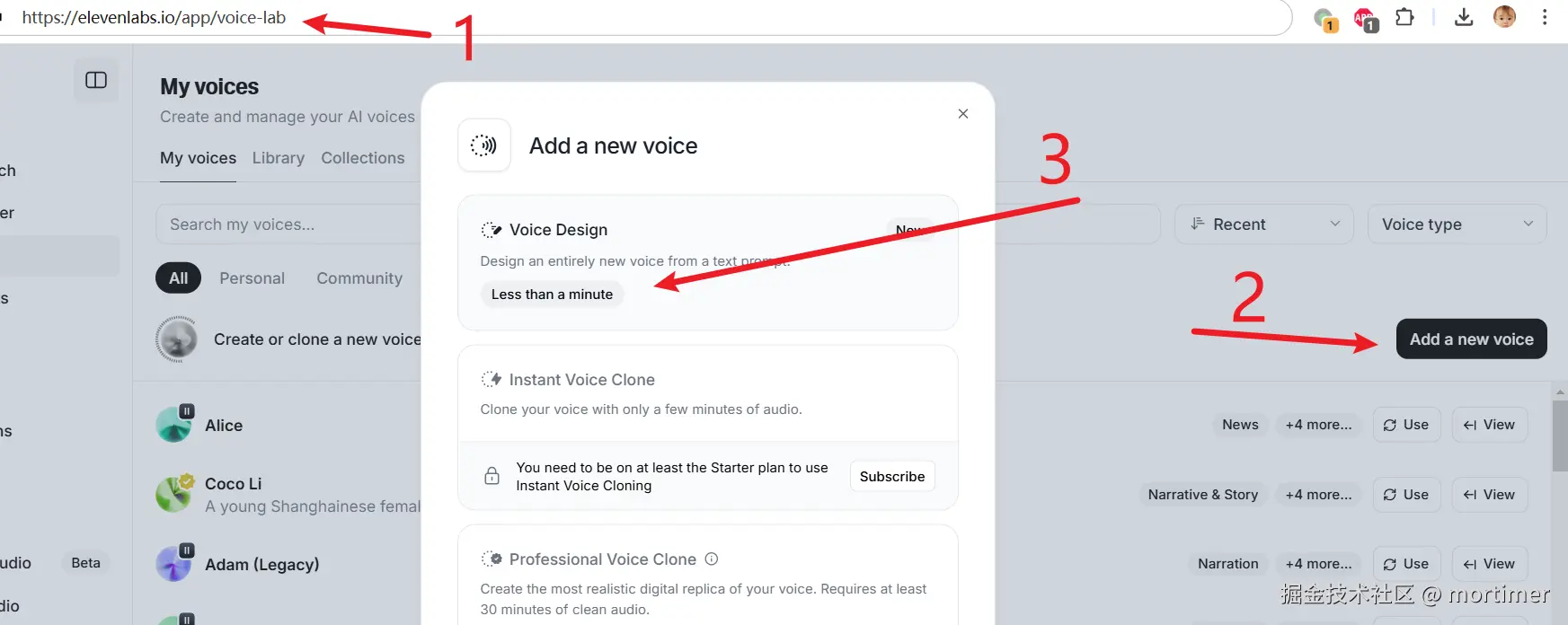
- Click the create button to open the custom voice dialog
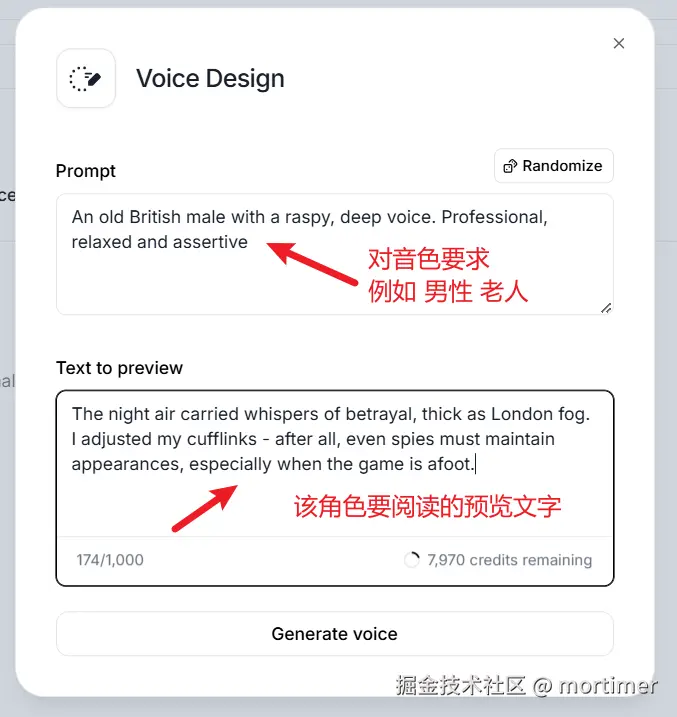
- In the upper box, describe the voice characteristics you want
- In the lower box, enter sample text for preview
Voice Cloning
In the Voice dropdown, select clone to use the original video's voice for dubbing.
Important: Voice cloning requires an ElevenLabs paid subscription. Do not use it without one — it will fail.
To upgrade: https://elevenlabs.io/app/subscription
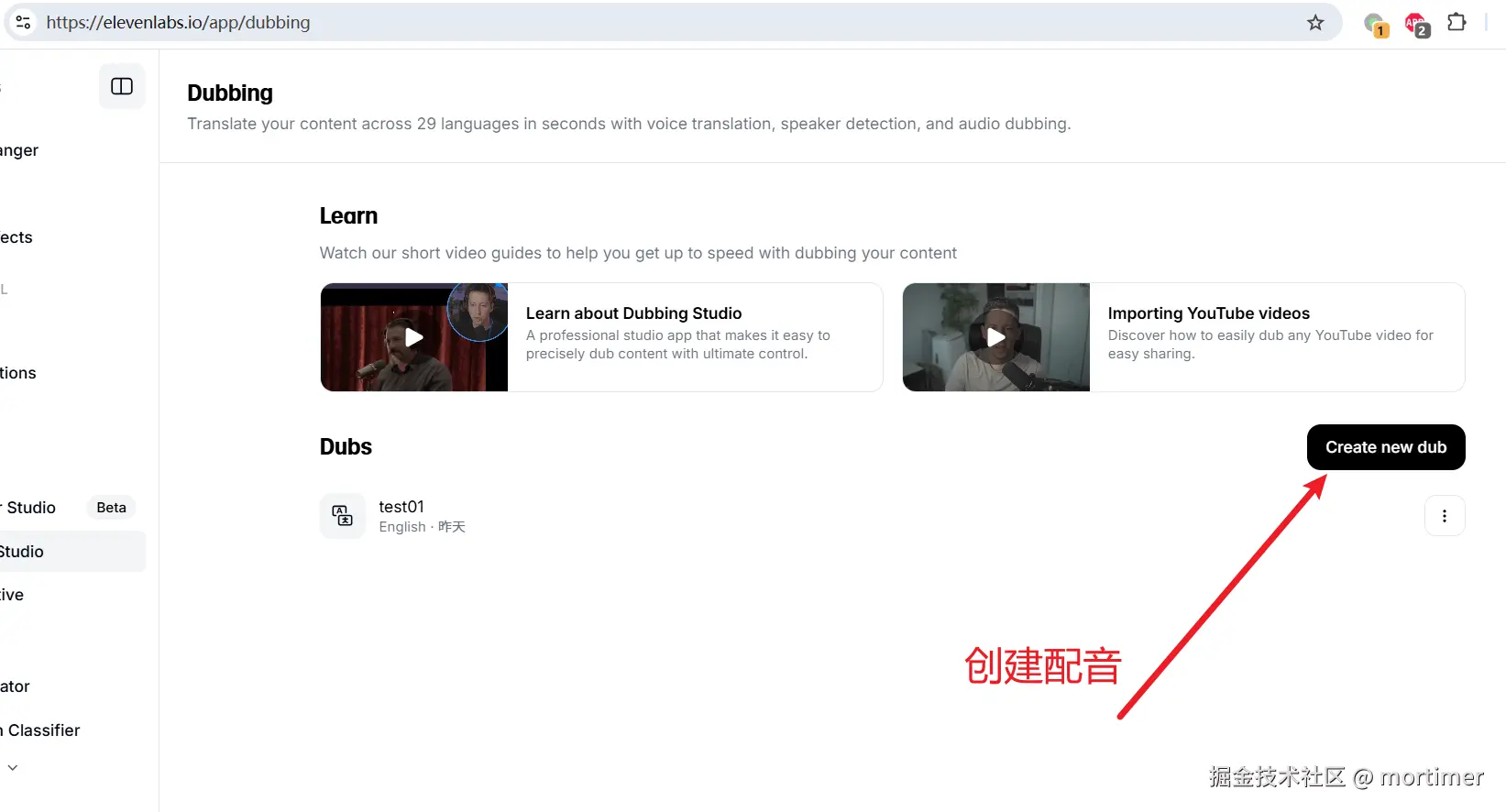
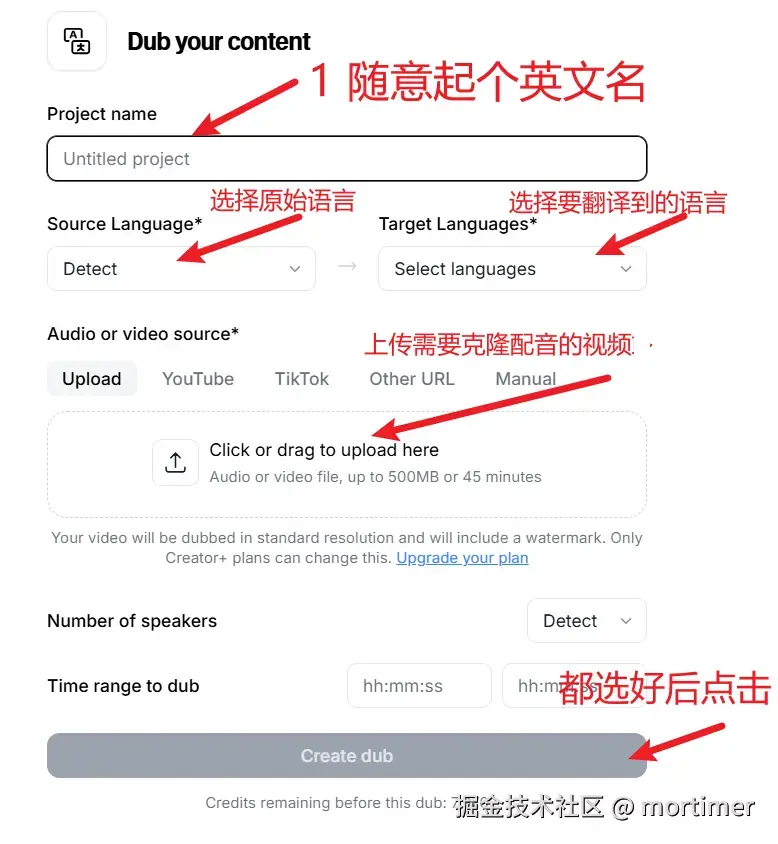
You can also try the feature for free on their website (by uploading a video), but results will have a watermark.
URL: https://elevenlabs.io/app/dubbing
Troubleshooting
| Issue | Solution |
|---|---|
| Test failed | Check that your API Key is correct and your account is active |
| Rate limit error | Reduce concurrency and increase the pause between requests |
| Can't find a desired voice | Add more voices in Voice Lab |
| Clone feature unavailable | Requires a paid subscription |