
AzureTTS Voice Channel
What is it?
AzureTTS is a text-to-speech service from Microsoft Azure cloud platform. It produces very natural voice output, supports SSML markup, and is ideal for professional dubbing needs.
Prerequisites:
- An Azure account
- Azure Speech Services enabled
- An authorization Key and region information
Step 1: Enable Azure Speech Services
- Visit Azure Portal and log in
- Create a resource → search for "Speech Services"
- Create a Speech resource, choosing a suitable region (recommended: East Asia)
- After creation, go to the resource details page
Step 2: Get Your Key and Region
- On the resource details page, find "Keys and Endpoint"
- Copy KEY 1 or KEY 2 (either works)
- Note your region (e.g.,
eastasia)
Step 3: Configure the Software
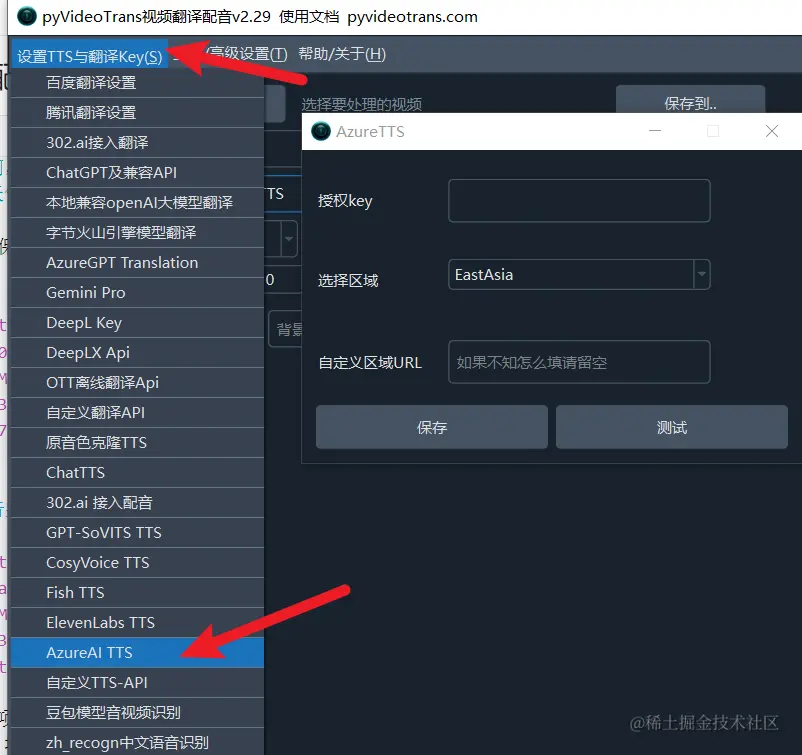
- Open the software and go to Menu → Settings → AzureTTS
- Fill in the following:
- Authorization Key: Paste the key you copied
- Region: Enter
EastAsia(or whichever region you selected) - Custom Region: Leave blank unless you have specific requirements
- Click the test button to verify the connection
Step 4: Select a Voice
After configuration, return to the main interface:
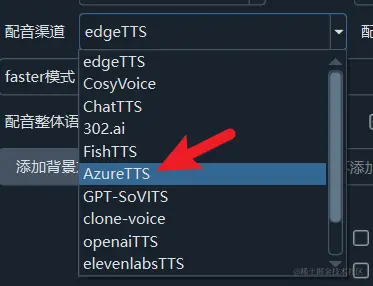
- Select
AzureTTSfrom the Voice Channel dropdown - Choose the desired language in Target Language
- Select a voice from the Voice dropdown
- Click the play button to preview
Free Trial Channel
Starting from v3.95, the software includes a free voice channel based on Azure's trial endpoint. This channel:
- Can use all Azure voices
- Does not require an Azure account
- May not be very stable
- For a better experience, consider subscribing to a paid Azure plan
Supported Languages and Voices
AzureTTS supports 400+ languages and voice roles worldwide, including:
- Chinese (Mandarin, Cantonese, Taiwanese)
- English (American, British, Australian, etc.)
- Japanese, Korean
- French, German, Spanish
- Many more...
Important Notes
- Billed per character — review Azure pricing before heavy usage
- Region selection affects latency — choose the nearest region to you
- If using a custom region, ensure it matches your Azure resource's region
Common Errors
| Error | Cause | Solution |
|---|---|---|
| Authentication error | Invalid key | Verify the key was copied correctly |
| Resource not found | Incorrect region | Confirm the region matches your Azure resource |
| Quota exceeded | Usage limit reached | Check your Azure account quota or upgrade your plan |