
If you don't need CUDA acceleration, you do NOT need to install or configure CUDA, cuDNN, etc.
CUDA is a toolkit from NVIDIA that enables your graphics card to handle more tasks. In this software (pyVideoTrans), to enable CUDA acceleration, you must first install the CUDA environment. This guide will walk you through installing CUDA 12.8 and the corresponding cuDNN 9.11 on Windows 10.
The Windows pre-packaged version is bundled with CUDA 12.8; other versions are untested. cuDNN 9.8 can be installed on Windows 10, but Windows 11 requires cuDNN 9.11 or higher.
Step 1: Check if Your Graphics Card is NVIDIA
Open Device Manager
- Right-click the "Start" button (the Windows icon) in the bottom-left corner of your desktop.
- Select "Windows Administrative Tools" > "Computer Management" from the pop-up menu. This will open a window.
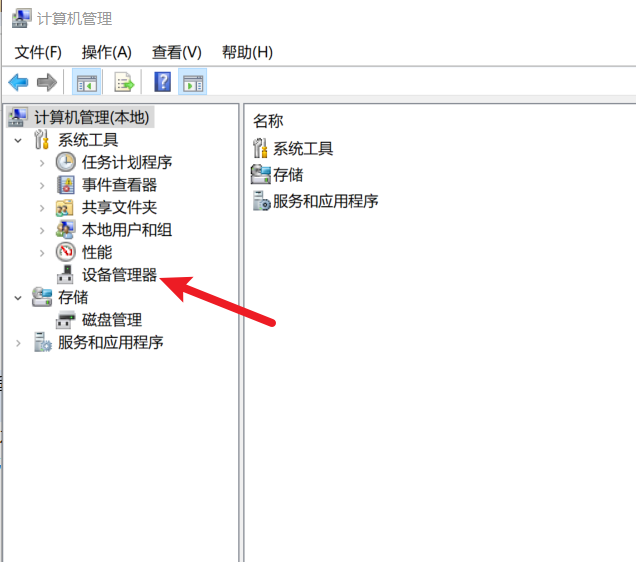
Find Graphics Card Information
In the Computer Management window, click
Device Manageron the left. On the right, find "Display adapters" and click the small arrow in front to expand it.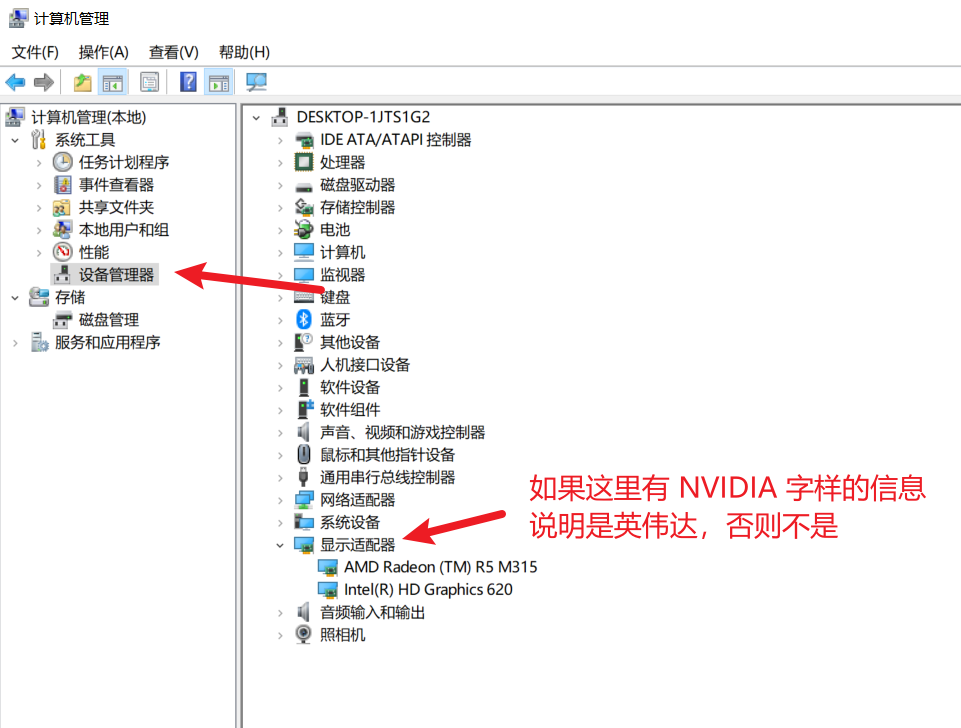
Look for the word "NVIDIA", such as "NVIDIA GeForce GTX 1660".
If you see it, congratulations! Your graphics card is NVIDIA, and you can proceed. If not (e.g., it shows "Intel" or "AMD"), then CUDA cannot be used, and this tutorial ends here.
Step 2: Check and Update Your Graphics Driver Version
Open NVIDIA Management Software
If you have the graphics driver installed, there might be a green "NVIDIA" icon in the system tray (near the clock) on the bottom-right of your taskbar. Right-click it and select "NVIDIA GeForce Experience" to open it.
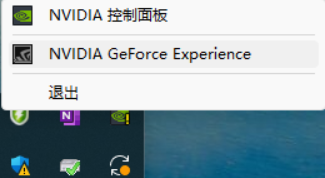
If not, skip to step 3 to download manually.
Check Driver Version and Update
- After opening, click "Drivers" in the top-left corner.
- It will show the current driver version (e.g., "546.33"). If a newer version is available, there will be a "Download" button.
- Click "Download" and follow the prompts to install. Restart your computer after installation.
No Software? Download Driver Manually
- Open your browser and go to: https://www.nvidia.com/en-us/geforce/drivers/ to download the driver update software, then install it.
- After installation, open it and follow the instructions to check for and update the driver.
Step 3: Check for Existing CUDA and Determine Maximum Supported Version
- Open Command Prompt (CMD)
- Press the Windows key + R on your keyboard to open the "Run" dialog.
- Type
cmdand press Enter to open a black command-line window.
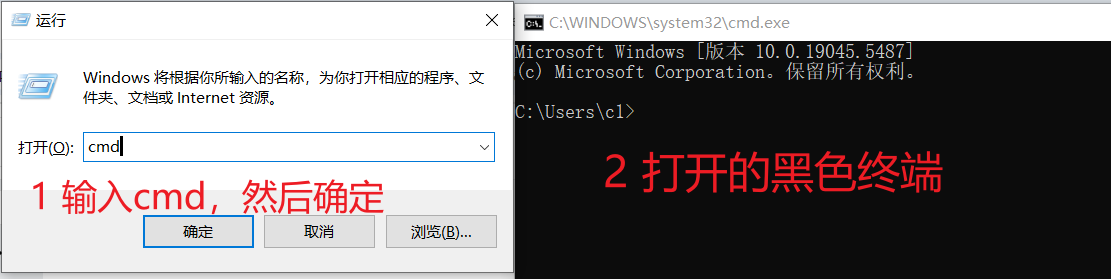
- Check CUDA Version
- In the command prompt, type:
nvcc -V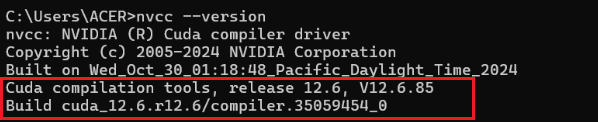
- In the command prompt, type:
Press Enter. If you see something like Cuda compilation tools, release 12.8, V12.8.xxx, it means CUDA is already installed, version 12.8. If you see "not recognized as an internal or external command", it means CUDA is not installed; proceed with installation.
If the version is 11.x, please uninstall it first and then reinstall 12.8.
- Check Maximum Supported CUDA Version
- In the command prompt, type:
nvidia-smi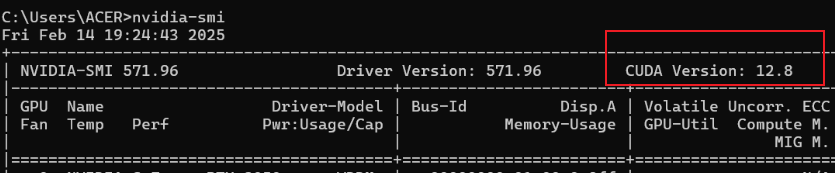
- In the command prompt, type:
Press Enter. A table will appear. Look at the top-right for "CUDA Version" (e.g., 12.8 or higher). This indicates the highest version your driver supports. As long as it's 12.8 or above, you can install our target CUDA 12.8. If it shows 11.x, your graphics driver is too old; please update it first.
Step 4: Download and Install CUDA 12.8
- Download CUDA 12.8
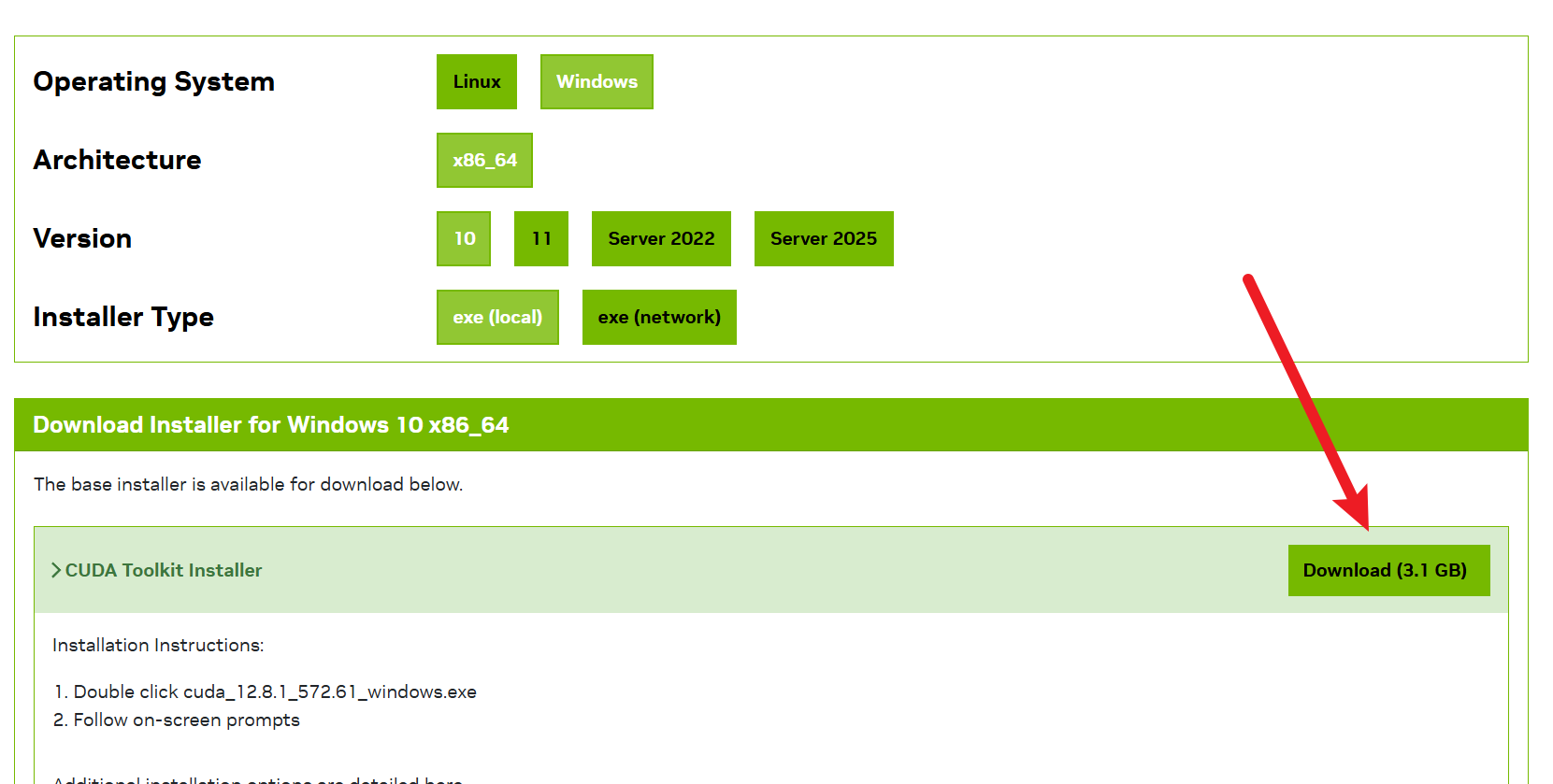
- Open your browser and go to the NVIDIA download page: https://developer.nvidia.com/cuda-12-8-1-download-archive
- Select "Windows" > "x86_64" > "10 (or 11 if you are on Windows 11)" > "exe (local)", then click "Download".
- The filename will be something like
cuda_12.8.1_572.61_windows.exe, and it will download to your "Downloads" folder.
- Install CUDA (Custom Mode)
Double-click the downloaded file. An installation window will pop up. Agree to the license and click Next.
Choose "Custom (Advanced)" installation and click "Next".
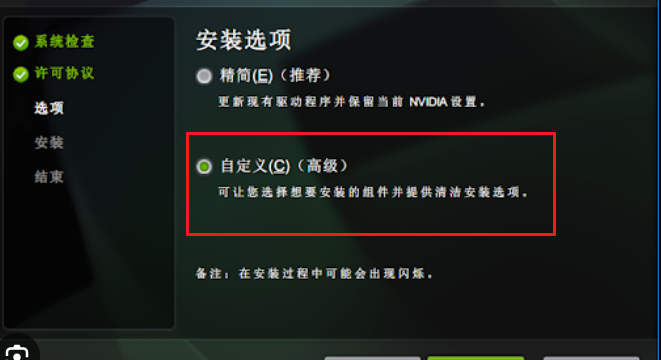
In the options list, only check the first line "CUDA". Uncheck all other options to avoid conflicts.
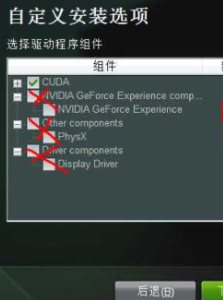
Then, click the
+sign in front ofCUDAand uncheckVisual Studio Integration, otherwise installation may fail easily.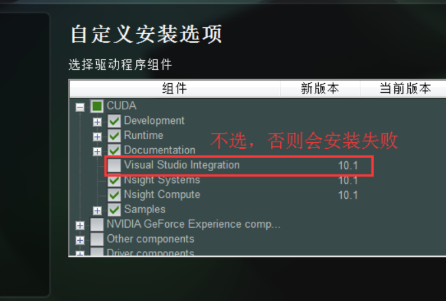
Click "Next" and follow the prompts to complete the installation. The default path is
C:\Program Files\NVIDIA GPU Computing Toolkit\CUDA\v12.8.
What to Do If You Encounter an Error?
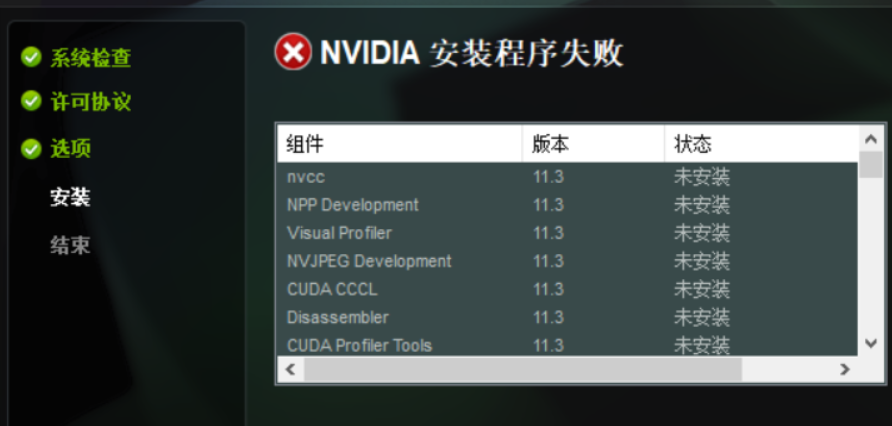
- If the installation is interrupted with a "Not Installed" or "Failed" message, you may have selected the wrong options. Run the installer again, choose Custom installation, ensure only the first line "CUDA" is selected, all others are unchecked, and under CUDA, uncheck
Visual Studio Integration. - If it still fails, proceed to the next step to install Visual Studio.
- If the installation is interrupted with a "Not Installed" or "Failed" message, you may have selected the wrong options. Run the installer again, choose Custom installation, ensure only the first line "CUDA" is selected, all others are unchecked, and under CUDA, uncheck
Step 5: Install Visual Studio (Skip This Step if CUDA Installation Succeeded)
If you unchecked
Visual Studio Integrationin the previous step, there should be no error. If an error still occurs, please install Visual Studio as described here.
Download Visual Studio Community Edition
- Open your browser and go to: https://visualstudio.microsoft.com/zh-hans/free-developer-offers/
- Click "Free download Visual Studio Community" (Community Edition) to download the installer.
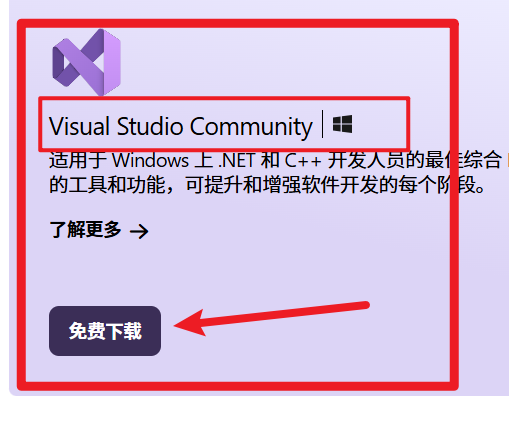
Install C++ Development Environment
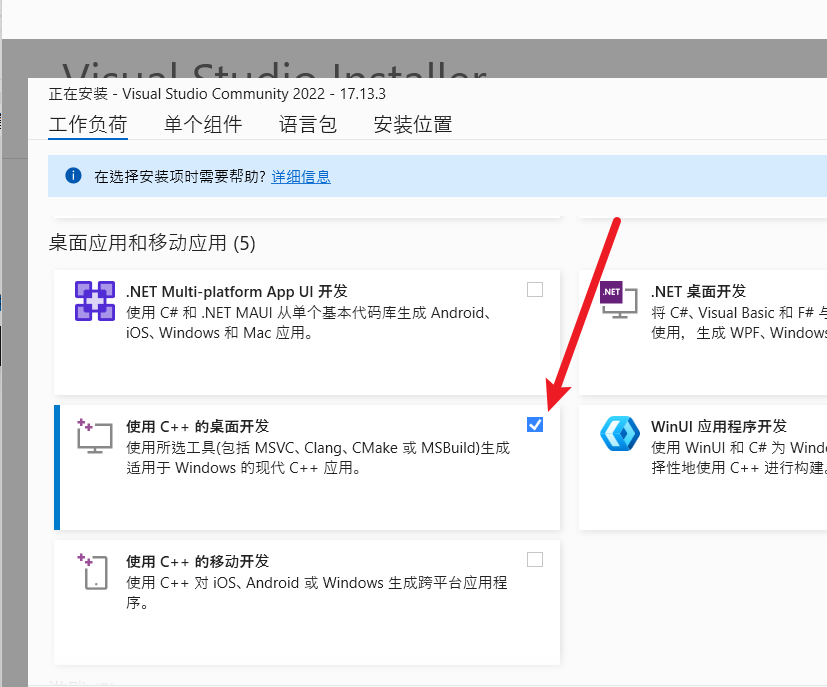
- Double-click the installer. After the window pops up, select "Desktop development with C++".
- Click "Install". This may take several tens of minutes. Restart your computer after installation.
- Reinstall CUDA 12.8
- Go back to Step 4, run the CUDA installer again, and follow the Custom mode, selecting only "Runtime" for installation. This time it should succeed.
Step 6: Verify CUDA Installation and Configure Environment Variables
Check if Installation Was Successful
- Open CMD (Windows key + R, type
cmd). - Type:
nvcc -V If it shows Cuda compilation tools, release 12.8, V12.8.xxx, the installation was successful. If it says "not recognized as an internal or external command", you need to add environment variables.
- Open CMD (Windows key + R, type
Add CUDA to Environment Variables (Usually set automatically; if not, add manually)
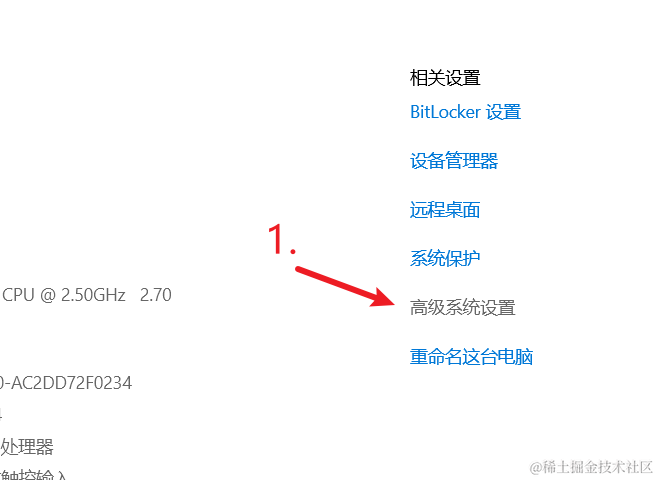
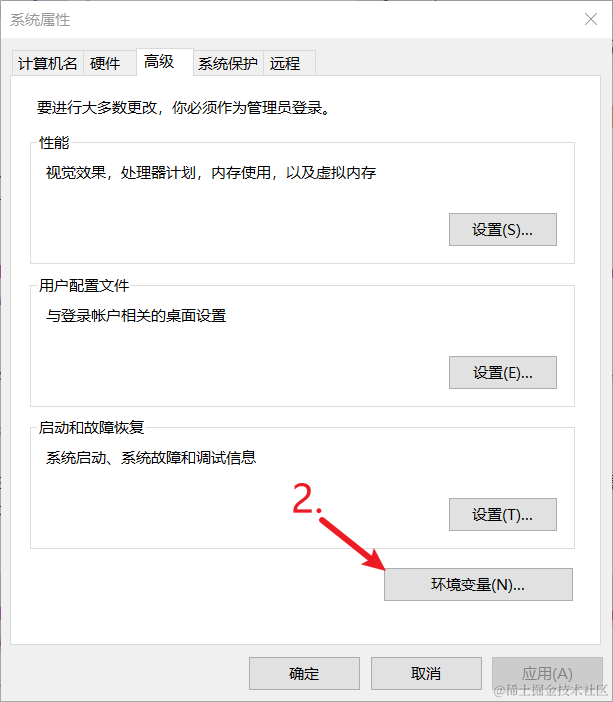
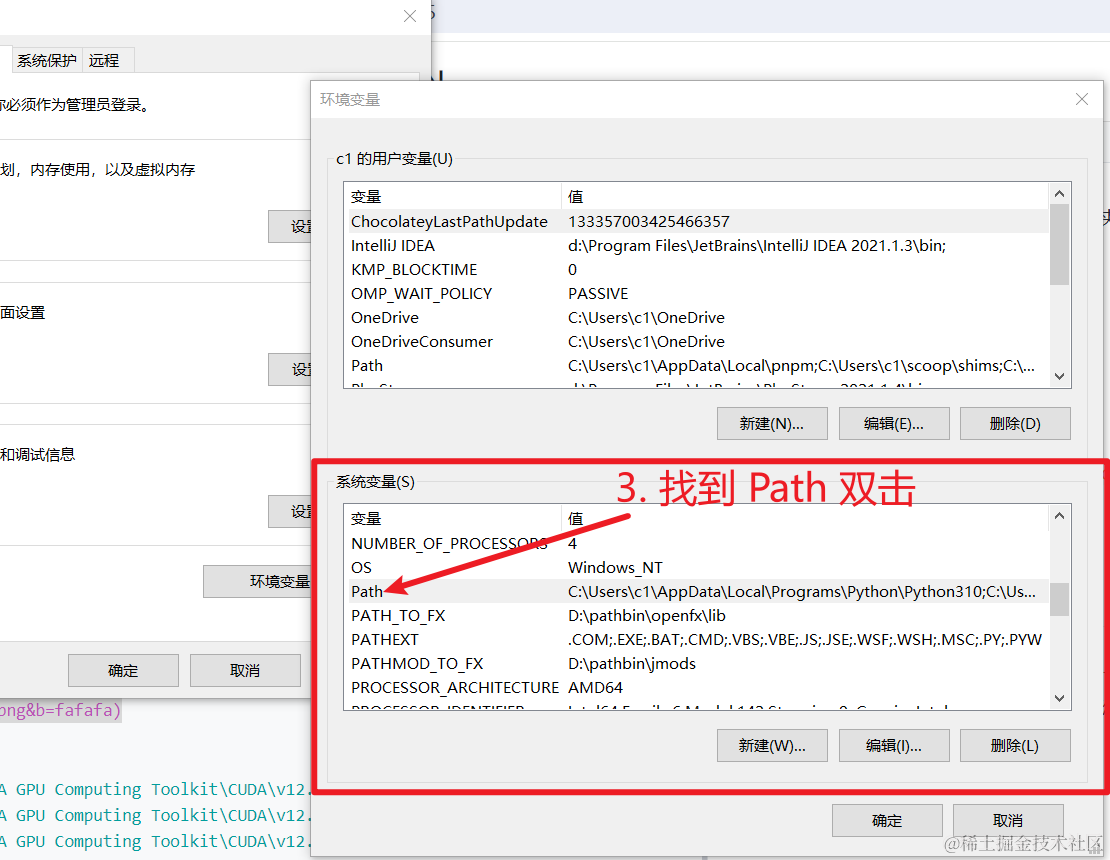
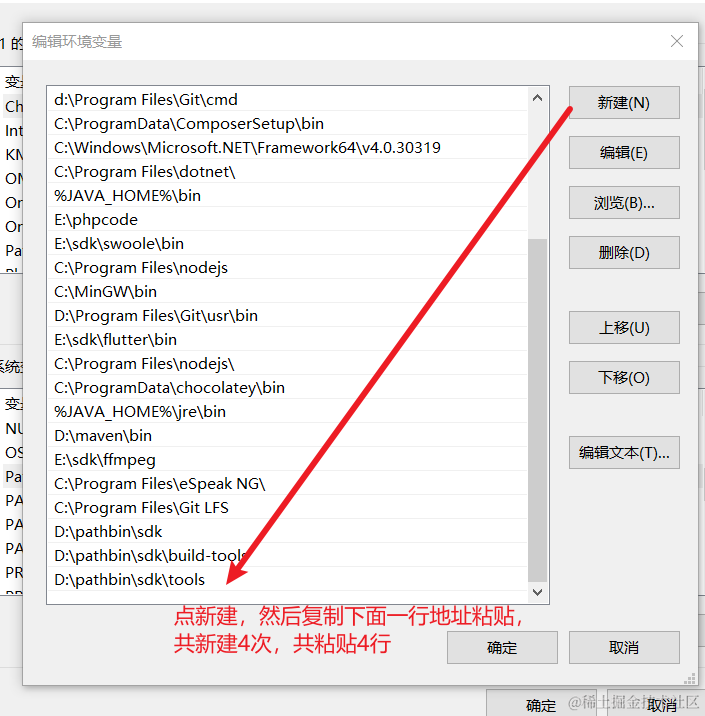
- Right-click "This PC", select "Properties" > "Advanced system settings" > "Environment Variables".
- Under "System variables", find "Path", click "Edit...", then click "New" and add the following three paths:
C:\Program Files\NVIDIA GPU Computing Toolkit\CUDA\v12.8\bin C:\Program Files\NVIDIA GPU Computing Toolkit\CUDA\v12.8\lib C:\Program Files\NVIDIA GPU Computing Toolkit\CUDA\v12.8\include - Click "OK" to save and close all windows.
- Reopen CMD and type
nvcc -V. You should now see the version information.
Step 7: Install cuDNN 9.11
- Download cuDNN 9.11
- Open your browser and go to: https://developer.nvidia.com/cudnn-9-11-0-download-archive?target_os=Windows&target_arch=x86_64
- You may need to log in with your NVIDIA account (register one for free if you don't have it).
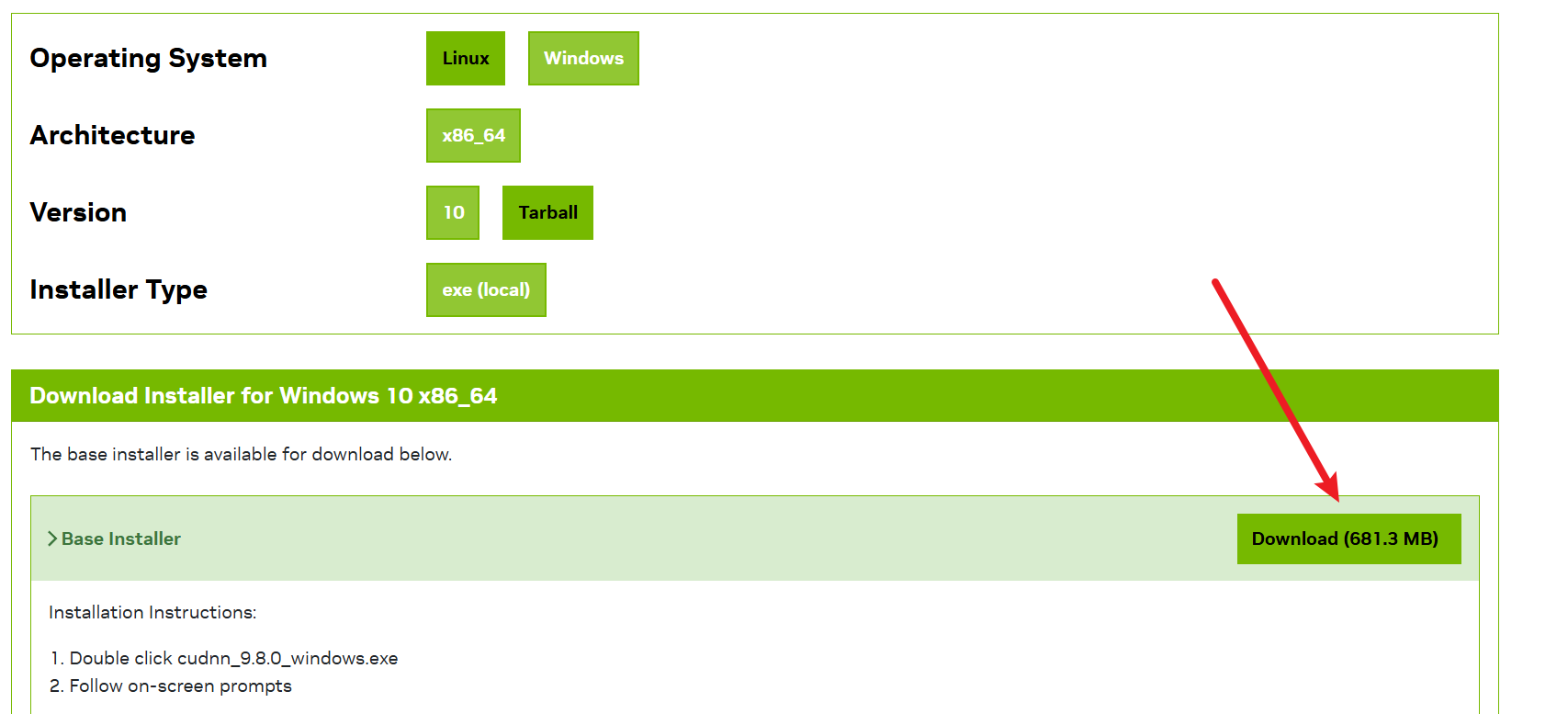
- Select the "local version" and download the
.exefile for Windows.
Install cuDNN
- Double-click the downloaded
.exefile and follow the prompts to install.
- Double-click the downloaded
Add Environment Variables
The method is the same as for CUDA. If you installed a version other than
cudnn9.11, you need to modifyv9.11below to your version. Also, you should navigate to the folderC:\Program Files\NVIDIA\CUDNN\vYourVersionNumber\binand see what the subfolder name is. For cudnn v9.11, it shows12.9. Different versions show different numbers, so modify12.9to the actual number displayed.
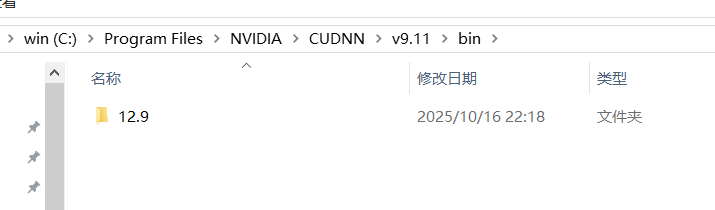
This number might be higher than your installed CUDA 12.8 version; don't worry, it's compatible.
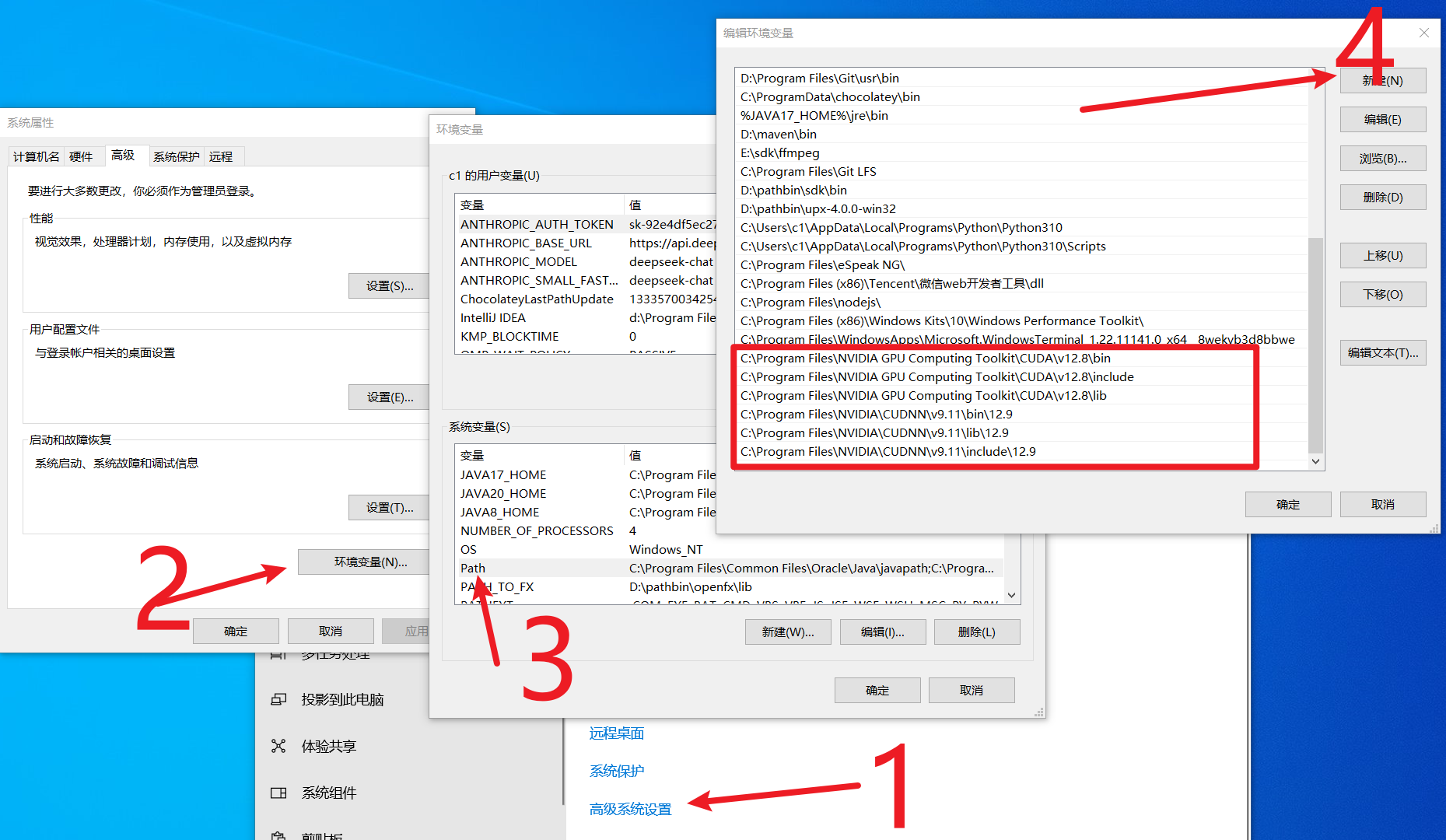
C:\Program Files\NVIDIA\CUDNN\v9.11\bin\12.9C:\Program Files\NVIDIA\CUDNN\v9.11\lib\12.9C:\Program Files\NVIDIA\CUDNN\v9.11\include\12.9
Complete Environment Variables Diagram (Specific paths will vary based on installed CUDA and cuDNN versions)
Finally: All Done!
Restart your computer. Now CUDA 12.8 and cuDNN 9.11 are both installed! You can start running programs that require GPU support. If there are software instructions (e.g., run python script.py), open CMD, navigate to your project folder, and try the corresponding command.
Useful Resource Links
- All cuDNN Version Download Archive: https://developer.nvidia.com/cudnn-archive
- All CUDA Version Download Archive: https://developer.nvidia.com/cuda-toolkit-archive