
pyVideoTrans FAQ & Solutions
To help you get the most out of pyVideoTrans, we've compiled solutions for the most common issues.
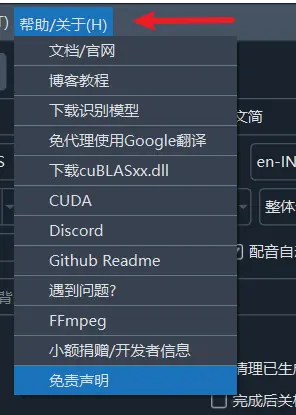
The Menu → Help/About section contains many useful links (model download URLs, CUDA configuration, etc.). Try them when you run into problems.
How to view logs: The logs/ folder in the software root directory contains date-stamped .log files. When reporting an error, copy approximately the last 30 lines.
How to reset to factory settings: Delete the cfg.json, params.json, codec.json, and ass.json files from the videotrans/ directory, then restart the software.
On first use, models are downloaded online. Models are generally large, and overseas model repositories are not directly accessible from China. Even with a VPN, unstable connections may cause download failures.
Domestic mirror sites have download frequency limits and may not be fast or stable enough.
Due to the above, download failures are very common, and many other errors are indirectly caused by failed model downloads.
Part 1: Installation & Startup Issues
1. After double-clicking sp.exe, the software won't open or doesn't respond for a long time?
This is normal — don't panic.
- Cause: The software is built on
PySide6. The main interface has many components that need initialization on first load. Depending on your computer's performance, startup may take 5 seconds to 2 minutes. - Solutions:
- Be patient: Wait after double-clicking.
- Check antivirus: Some antivirus software may block startup. Try temporarily disabling it or adding the software to the whitelist.
- Check file path: Ensure the software path contains only English letters and numbers — no Chinese, spaces, or special symbols. For example,
D:\pyVideoTransis good;D:\program file\视频工具may cause issues. - Patch update issue: If you overlaid a patch and the software won't start, something went wrong. Re-download the full package, then apply the patch.
2. Missing python310.dll at startup?
This means you only downloaded the patch, not the main package.
- Solution:
- First download the full package from the official site.
- Extract it to the desired directory.
- Then download the latest patch and overlay it on the full package directory.
3. Does the software need to be installed?
No — it's a portable (green) version. Download the full package, extract it, and double-click sp.exe to run.
4. Why does antivirus software flag or block it?
- Cause: The software is packaged with
PyInstallerand lacks a commercial digital signature. Some security software may flag it as a risk — this is a common false positive. - Solutions:
- Add to trusted list: Add the software to your antivirus whitelist/exclusions.
- Run from source: Developers can run directly from source code to avoid this entirely.
5. Does the software support Windows 7?
No. Many core dependencies (PyTorch, PySide6) no longer support Windows 7. Use Windows 10 or 11.
6. How to deploy on macOS / Linux?
- Prerequisites:
- Python 3.10
- FFmpeg (
brew install ffmpeg/apt install ffmpeg) - uv package manager
- libsndfile
- Deployment steps:bash
git clone https://github.com/jianchang512/pyvideotrans cd pyvideotrans uv sync uv run sp.py - Optional dependencies:
uv sync --all-extrainstalls all optional channels (qwen-tts, qwen-asr, moss-tts, chatterbox)
7. Source deployment errors at startup?
Common causes and solutions:
- FFmpeg not installed: Ensure FFmpeg is installed and in PATH
- Missing dependencies: Run
uv syncto reinstall dependencies - Wrong Python version: Must use Python 3.10 (specified in
.python-version)
Part 2: Core Features & Settings
8. How to improve speech recognition accuracy?
Accuracy depends primarily on model size and settings.
- Model selection: In "faster" or "openai" modes, larger models = higher accuracy but slower processing and more resource usage.
tiny: Smallest, fastest, lowest accuracy.base/small/medium: Balanced, commonly used.large-v3: Largest, best accuracy, highest hardware requirements (8GB+ VRAM).
- Optimization: Click
Menu → Tools → Advanced Options.
Under faster/openai speech recognition settings, adjust:
- VAD threshold:
0.5 - Min speech duration (ms):
3000 - Max speech duration (sec):
6 - Silence split threshold (ms):
140 - Hotwords: Fill in proper nouns from the video, comma-separated.
- Noise reduction: If the video has background music/noise, click "More Settings" and check "Separate vocal/BGM" to significantly improve recognition.
9. Why is the output video quality reduced?
Any re-encoding operation inevitably causes quality loss. To preserve original quality:
- Original format: Use H.264 (libx264) MP4 files (best compatibility).
- Disable slow processing: Do NOT check "Auto Slow Video".
- No hard subtitles: Choose "No subtitles" or "Soft subtitles". Hard subtitles force full re-encoding.
- Advanced – CRF: Default 23; lower to 18 or lower (minimum 0) for higher quality (larger file size).
- Advanced – Compression preset: Default
fast. Usesloworslowerfor higher quality (longer processing time). - Advanced – 264/265: Default
264. Use265for higher quality at the same bitrate.
10. Why is the output video extremely large?
- Set Advanced → Video output quality (CRF) to 25-51 (higher = smaller but lower quality).
- Advanced → 264/265 encoding: Choose 265 for smaller size at the same quality.
11. How to configure a proxy?
Some translation/dubbing services (Google, OpenAI, Gemini) are not accessible from China without a proxy.
- Setting: Enter your proxy URL in the "Proxy" text field on the main interface.
- Format: Typically
http://127.0.0.1:10808(port depends on your proxy client). - Important: If you don't know what a proxy is or don't have one, leave this blank. Incorrect settings will cause errors.
- Domestic APIs don't need proxies: Baidu, Tencent, Alibaba, DeepSeek, Zhipu AI, ByteDance Volcano — these Chinese APIs don't use proxies by default.
- Local services don't need proxies: GPT-SoVITS, ChatTTS, F5-TTS, etc. — local services bypass proxies automatically.
12. How to customize subtitle font, color, and style?
Click on the main interface: More Settings → Subtitle Style.
Part 3: Speech Recognition Issues
13. Recognition result is empty or garbled
- Cause: Wrong language selection, no valid human speech in video, or insufficient VRAM
- Solutions:
- Check that "Spoken" is correct (don't rely too much on Auto)
- Check if background music interferes (try enabling noise reduction)
- Insufficient VRAM: lower
beam_size, useint8quantization, or use thesmallmodel - Try a different STT service (e.g., switch from faster-whisper to openai-whisper)
14. Recognition is very slow
- Cause: Large model without GPU acceleration
- Solutions:
- Enable CUDA acceleration: Ensure CUDA 12.8+ and cuDNN 9.x are installed, check
CUDA Acceleration - Use a smaller model: Switch from
large-v3tomediumorsmall - CPU optimization: Change
Compute typetoint8in advanced options
- Enable CUDA acceleration: Ensure CUDA 12.8+ and cuDNN 9.x are installed, check
15. Out of VRAM/memory (Unable to allocate, CUDA out of memory)
- Cause: Model too large, or VRAM occupied by other programs
- Solutions (try in order):
- Use a smaller model: Switch from
large-v3tomedium,small, orbase.large-v3requires 8GB+ VRAM. - Adjust advanced settings: In
Menu → Tools → Advanced Options:CUDA compute type: Changefloat32tofloat16orint8beam_size: Change5to1best_of: Change5to1Context: Changetruetofalse
- Check multiple GPUs: If you have multiple GPUs, the first one might have insufficient VRAM. Versions ≥ v3.98-317 will auto-select the GPU with the most VRAM.
- Use a smaller model: Switch from
16. Speaker diarization is inaccurate
- Cause: Speaker diarization models have limited effectiveness in certain scenarios (multiple people talking simultaneously, high background noise)
- Solutions:
- Check "Identify Speakers" in "More Settings" and specify the number of speakers
- Switch speaker model in advanced options (built-in, Ali CAM++, pyannote)
- pyannote requires a HuggingFace token and license agreement
17. LLM re-segmentation makes results worse
- Cause: Small local models (e.g., 7B) lack intelligence, or prompts are too complex
- Solutions:
- Use stronger online models (DeepSeek-V3, GPT-4o, etc.)
- Simplify prompts (edit
videotrans/prompts/recharge/recharge-llm.txt) - When using
clonefor voice cloning, don't use LLM re-segmentation
18. Subtitles and audio are out of sync after dubbing
This is common in translation dubbing — different languages have different durations.
- Cause: Different languages have different syllable counts and grammatical structures, so dubbing duration differs from original subtitle duration. E.g., 2 seconds of Chinese may become 3-4 seconds when dubbed in English.
- Solutions:
- Enable audio speedup: Check
Audio speedupto auto-speed long dubbing to match subtitle duration - Enable slow video: Check
Slow videoto slow video frames to match dubbing duration - Both enabled: When ratio > 1.2x, audio speedup and slow video each handle half the difference
- Adjust speech rate: Set
Dubbing speed(e.g.,+10%) to increase overall dubbing speed - Use second-pass recognition: Check
Second-pass recognitionto generate more precise subtitle timestamps after dubbing
- Enable audio speedup: Check
For detailed principles, see Audio/Video Timeline Alignment
19. What is second-pass recognition? When is it needed?
After dubbing, it runs speech recognition again on the dubbed audio to generate subtitles with more precise timestamps and shorter text.
- Use cases: When "Single subtitle embedding" (hard or soft) is selected and precise subtitle/dubbing alignment is needed.
- Setup: Check
Second-pass recognition. Set max/min speech duration in advanced options. - Note: Second-pass recognition adds extra processing time.
Part 4: Translation Issues
20. Blank lines or prompt text in translation output
- Cause: Small local models lack intelligence, or AI merged subtitle lines
- Solutions:
- Small local models (e.g., 7B) are less capable — switch to DeepSeek/GPT-4o online models
- Uncheck "Send full subtitle" — translate line by line
- Set
trans_thread=1to reduce concurrency - Detailed explanation here
21. AI translation blocked by security filter
- Error message:
Content triggered AI security filter - Cause: Translation content was blocked by the AI service's safety system
- Solutions:
- Manually edit subtitles to remove potentially problematic content
- Switch translation services (e.g., from OpenAI to DeepSeek)
22. Translation misaligned with original (wrong subtitle lines)
- Cause: AI merged subtitle lines during translation, causing line number misalignment
- Solutions:
- Uncheck "Send full subtitle" in advanced options
- Set translation concurrency to 1
- Use online AI models with large context windows
23. Translation cache causing abnormal results
- Cause: Translation results were cached; changes to prompts or translation services haven't taken effect
- Solutions:
- Check
Clear Outputon the main interface - Manually delete cache files in
tmp/translate_cache/
- Check
Part 5: Dubbing Issues
24. Edge-TTS error 403 or silent output
- Cause: Microsoft rate limiting — too many requests in a short time
- Solutions:
- In "Advanced Options", set "Concurrent dubbing threads" to 1
- Set "Pause (sec) after TTS request" to 5-10
- If using a proxy, Edge-TTS may fail. Create an empty
edgetts-noproxy.txtfile in the software root to force bypass the proxy.
25. F5-TTS / CosyVoice / GPT-SoVITS cannot connect
- Cause: Local TTS service not started or wrong URL configuration
- Solutions:
- Ensure the external TTS service terminal window is still open
- Check the API URL (especially the port number)
- GPT-SoVITS requires starting
api.pyorapi_v2.py— not the web UI port 7860 - If using
0.0.0.0, change to127.0.0.1
26. GPT-SoVITS error {"detail":"Not Found"}
- Cause: API version mismatch or wrong port
- Solutions:
- Check whether
api.pyorapi_v2.pywas started; select the correspondingapi_v2?option in the software - Ensure you're using the API URL (default 9880), not the web UI URL (7860)
- Check whether
27. Index-TTS error Value: 'Same as the voice reference' is not in the list
- Cause: Index-TTS internal multilingual translation inconsistency bug
- Solution: Open
webui.pyin the Index-TTS project root, replacei18n("与音色参考音频相同")withSame as the voice reference
28. Azure-TTS error Could not find module Microsoft.CognitiveServices.Speech.core.dll
- Cause: Missing Microsoft VC++ runtime
- Solutions:
- If using a patch, re-download the full package
- If already using the full package, install the Microsoft VC++ runtime bundle and restart
29. Robotic or distorted sound after dubbing
- Cause: Audio speedup ratio too high (> 3x) or poor reference audio quality
- Solutions:
- Enable slow video to share the timing difference with audio speedup
- Improve reference audio quality: use clear 5-10 second single-voice WAV files
- Check "Separate vocal/BGM" to remove background noise
Part 6: Voice Cloning Issues
30. Using clone role fails or has poor audio quality
- Cause: Reference audio outside 3-10 second range, or subtitle timeline disrupted by LLM re-segmentation
- Solutions:
- Do NOT use LLM re-segmentation: It disrupts the timeline, causing misaligned reference audio extraction
- Force subtitle duration control: In
Advanced Options → Speech Recognition, setMax speech durationto 6-10,Min speech durationto 3000-4000 - Check
Merge short subtitlesandWhisper pre-split audio - Use
OmniVoice-TTSservice — better compatibility with short reference audio - Check
Separate vocal/BGMto improve reference audio quality
31. How to use custom reference audio?
- Record or extract a 5-10 second WAV audio clip (single voice, no background noise)
- Copy the audio to the
f5-ttsfolder in the software directory - Open
Menu → TTS Settings → Set Reference Audio, enterfilename.wav#spoken text in the audio - Select the filename from the dubbing voice dropdown on the main interface
Note: GPT-SoVITS reference audio should be placed in the GPT-SoVITS software root directory, not in
f5-tts.
Part 7: Video Compositing & Output Issues
32. Error ffprobe exec error or FFmpeg-related exceptions
- Cause: File path too long or contains special symbols
- Solutions:
- Move the video file to a shallower directory (e.g.,
D:\videos) - Rename to short English letters or numbers
- Remove special symbols from filenames (
?*, emoji, etc.)
- Move the video file to a shallower directory (e.g.,
33. Software says video "has no audio track"
- Possible cause 1: The video truly has no audio (some sites deliver video and audio separately)
- Possible cause 2: Unsupported video codec (e.g., AV1)
- Possible cause 3: Background noise is too loud, drowning out vocals
- Solutions:
- Play the file locally to confirm it has audio
- Try converting the video to standard H.264/MP4 format first
- Enable noise reduction or vocal separation
34. How to output lossless video?
When ALL conditions below are met, the video output is lossless (no re-encoding):
- Original video encoded as
mp4/h.264/yuv420p - Advanced options →
264/265 encodingset to264 Slow videoNOT enabledHard subtitlesNOT embedded (soft subtitles are fine)
Note: If dubbing duration exceeds the original video duration, the excess is truncated.
35. Audio, subtitles, and video out of sync after processing
This is normal in language translation.
- Cause: Different languages have different sentence lengths and syllable counts — pronunciation duration inevitably changes.
- Solutions:
- Enable
Audio speedupand/orSlow video - Set
Dubbing speed(e.g.,+10%) to increase overall speed - Enable
Second-pass recognitionfor more precise subtitle timestamps - See Audio/Video Timeline Alignment for details
- Enable
36. Frequent "out of VRAM" errors (e.g., Unable to allocate)
- Solutions (try in order):
- Use a smaller model: Switch from
large-v3tomedium,small, orbase - Adjust advanced settings:
CUDA compute type: Changefloat32tofloat16orint8beam_size: Change5to1best_of: Change5to1Context: Changetruetofalse
- Use a smaller model: Switch from
37. CUDA is installed, but GPU acceleration still doesn't work?
Check the following:
- CUDA version mismatch: Requires CUDA 12.8+
- Outdated GPU driver: Update to the latest NVIDIA driver
- cuDNN missing: Ensure cuDNN 9.x is installed and configured in PATH
- Hardware incompatibility: GPU acceleration only works with NVIDIA GPUs. AMD/Intel GPUs cannot use CUDA.
- Missing environment variables: Check that CUDA's
binandlibdirectories are in the system PATH
38. GPU usage is very low — is this normal?
Yes. The workflow is: Speech Recognition → Translation → TTS → Video Compositing.
Only the first step, speech recognition, heavily uses the GPU. The other stages (translation, compositing) primarily use the CPU, so low GPU load most of the time is expected.
39. Hard drive full after processing several videos?
This usually occurs when "Slow Video" is enabled, generating many temporary files.
- Cause: The feature splits the video into many small clips per subtitle and processes each one, creating cache files far exceeding the original video size.
- Solutions:
- Manual cleanup: After processing, manually delete everything in the
tmp/folder in the software root. - Auto cleanup: Normally closing the software triggers automatic cleanup.
- Manual cleanup: After processing, manually delete everything in the
40. Why do recognition results and subtitles never change when reprocessing the same video?
- Cause: The software caches results by default. If it detects existing subtitle files for a video, it reuses the cache.
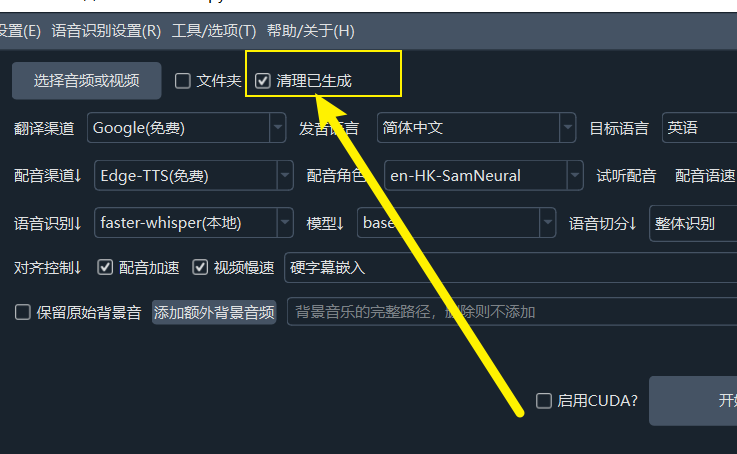
- Solution: Check
Clear Outputin the top-left of the main interface.
Part 8: Batch Processing Issues
41. Batch video translation keeps getting stuck
By default, batch tasks split each job into multiple stages processed in parallel. Too many tasks may exhaust resources.
- Solution: Check Advanced Options → Force serial batch translation to switch to serial processing.
42. How to control concurrency in batch processing?
In Advanced Options → General Settings:
Max CPU concurrent tasks: Max simultaneous CPU tasks (don't exceed CPU core count)Max GPU concurrent tasks: Simultaneous GPU tasks (set to 1 unless multi-GPU or single GPU VRAM > 24G)Batch video translation batch size: Set to 1 to process one by one; set to 0 to process all at once.
Part 9: Advanced Options Explained
43. What's the difference between audio speedup and slow video?
| Option | Effect | Best for |
|---|---|---|
| Audio speedup | Speeds up dubbing to match subtitle duration (slight quality loss) | Dubbing is 1-2x longer than subtitle |
| Slow video | Slows down video to match dubbing duration (possible visual stutter) | Dubbing is 2x+ longer than subtitle |
| Both | Each handles half the time difference — best quality | Dubbing significantly longer than subtitle |
44. What does "Send full subtitle" do?
When checked, the AI receives line numbers and timestamps with the translation request — better quality but may merge lines. Recommendation:
- Check when using online LLMs (DeepSeek, GPT-4o)
- Uncheck when using small local models
45. What's the difference between "Second-pass recognition" and "LLM re-segmentation"?
| Option | Timing | Purpose |
|---|---|---|
| LLM re-segmentation | After speech recognition | AI corrects errors and re-splits long text |
| Second-pass recognition | After dubbing completion | Re-transcribes dubbed audio for more precise timestamps |
When using
clonerole, don't use LLM re-segmentation.
46. How to choose subtitle embedding type?
| Type | Description | Best for |
|---|---|---|
| No subtitles | Only replace audio, no subtitles | Audio-only dubbing |
| Hard subtitles | Permanently burned into video, cannot be hidden | Any player shows them |
| Soft subtitles | Separate track, player can toggle | Need flexible subtitle control |
| Hard subtitles (bilingual) | Chinese-English bilingual hard subs | Need bilingual display |
| Soft subtitles (bilingual) | Chinese-English bilingual soft subs | Bilingual display with toggle |
Part 10: File & Path Issues
47. What are the requirements for input file paths?
- Path length: Windows CLI has a 260-character limit — keep paths short.
- Special symbols: Filenames should not contain
?*, emojis, or other special characters. - Chinese paths: Supported, but English paths are recommended to avoid compatibility issues.
- Spaces: Allowed in paths, but best avoided.
48. Where are output files saved?
- Default location:
_video_out/folder next to the original video - Standalone features output: Batch STT, dubbing, SRT translation output goes to
output/ - Custom output: Can be set on the main interface
49. How to import existing SRT subtitles?
- Create a
_video_out/folder next to the video file - Inside it, create a subfolder named after the video (e.g.,
myvideo-mp4— must include the format extension) - Copy subtitle files to the subfolder, renamed as
zh-cn.srt(source) anden.srt(target) - Import the video and run translation — the software will skip ASR and translation stages.
Part 11: CLI Issues
50. Basic CLI Usage
uv run cli.py --task <task_type> --name "<file_path>" [other options]Task types: stt (speech-to-text), tts (text-to-speech), sts (subtitle translation), vtv (video translation)
51. How to view available services and languages?
uv run cli.py --list providers    # View all services
uv run cli.py --list languages    # View all language codes
uv run cli.py --list models # View faster-whisper models52. Common CLI errors
--name is required: Input file not specifiedFile not found: Wrong file path or file doesn't exist--voice_role is required: TTS mode requires a voice role--target_language_code is required: STS/VTV modes require a target language
Part 12: General Information
53. Does the software support Docker deployment?
Yes. Use the WebUI interface.
54. Can it recognize hardcoded subtitles in video frames (OCR)?
No. The software analyzes the audio track to recognize human speech. It does not have OCR capabilities. If needed, check this project for extracting hard subtitles from video
55. Can I add new language support?
Yes, see how to add new target languages
56. Is the software free? Can it be used commercially?
- Cost: This is a free and open-source project — all features are free. Note that third-party translation, TTS, or STT services may charge their own fees (unrelated to this software).
- Commercial use: Individuals and companies may freely use the software. However, to integrate the code into your commercial product, you must comply with the GPL-v3 license. Some models or online APIs used by certain services may have their own licensing terms — check with the respective service provider.
57. Is human customer support available?
No. This is a personal free and open-source project with no profit — no dedicated support team. If you encounter issues, first read this FAQ thoroughly. You can also donate via the WeChat QR code (bottom right of the software) with your WeChat ID for paid technical support.
58. Where to download the software and models?
- Software download: pyvideotrans.com/downpackage
- Source code: github.com/jianchang512/pyvideotrans
59. Errors and logs
- Log location: The
logsfolder in the software root contains date-stamped.logfiles. - Reporting: Click "Report Error" on error dialogs to auto-submit to the forum, or copy the last 30 lines from the log and ask AI.
60. Why was "Auto Detect" removed from the spoken language list in the new version?
"Auto Detect" is still available in the "Batch STT" panel. It was removed from the "Video/Audio Translation" feature because subsequent steps (translation, dubbing with reference audio) require an explicit source language — otherwise errors occur. If you only need STT, use the "Batch STT" panel on the left.
Quick Troubleshooting Table
| Problem | Possible Cause | Solution |
|---|---|---|
| Software won't start | Antivirus blocking / path issue | Add to whitelist / move to English-only path |
| Missing python310.dll | Only patch downloaded | Download full package, then overlay patch |
| Empty recognition results | Wrong language / no valid speech | Correct language / enable noise reduction |
| Out of VRAM | Model too large | Use smaller model / int8 / lower beam_size |
| GPU not used | CUDA not installed / driver outdated | Install CUDA 12.8+ / update driver |
| Blank lines in translation | AI merged subtitle lines | Uncheck "Send full subtitle" / use online model |
| Edge-TTS 403 | Microsoft rate limiting | Lower concurrency / increase pause seconds |
| Audio/subtitle out of sync | Language duration difference | Enable audio speedup / slow video |
| ffprobe error | Path too long or special symbols | Simplify filename / move to shallow directory |
| Hard drive full | Slow video generates temp files | Clean tmp/ folder |
| Poor clone dubbing | Reference audio duration wrong | Keep 3-10 sec / disable LLM segmentation |
| GPT-SoVITS 404 | API version mismatch | Check api.py vs api_v2.py |