
Compatible AI / Local LLM Translation Channel
What is it?
In pyVideoTrans, AI large language models can serve as highly effective translation channels by leveraging context for significantly improved translation quality. The Compatible AI / Local Model channel supports all AI services that use an OpenAI ChatGPT-compatible interface, including:
- Online AI platforms (Moonshot AI, Baichuan AI, 01.AI, etc.)
- Locally deployed models (via Ollama, LM Studio, etc.)
- Any third-party service with an OpenAI-compatible API
Prerequisites
- pyVideoTrans software
- An API key from the AI platform (for online services) or a local model (for offline use)
Using Online AI Platforms
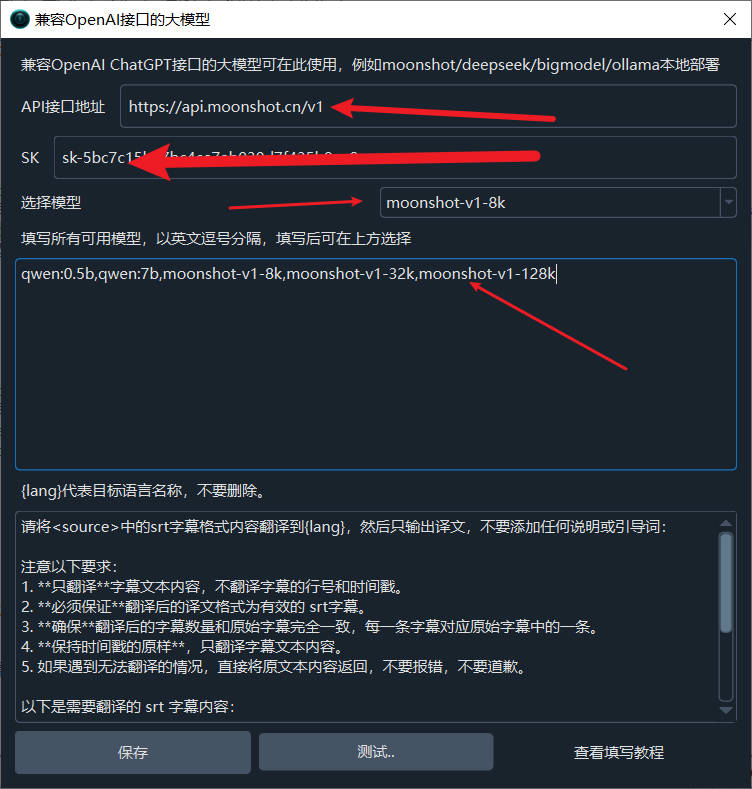
Moonshot AI (月之暗面)
- Open the menu bar → Translation Settings → OpenAI ChatGPT API Settings
- In the API URL field, enter:
https://api.moonshot.cn/v1 - Enter the API key from the Moonshot platform in the SK field (get it at: https://platform.moonshot.cn/console/api-keys)
- In the model text box, enter:
moonshot-v1-8k,moonshot-v1-32k,moonshot-v1-128k - Select a model from the dropdown
- Click Test, then save after success
Baichuan AI (百川智能)
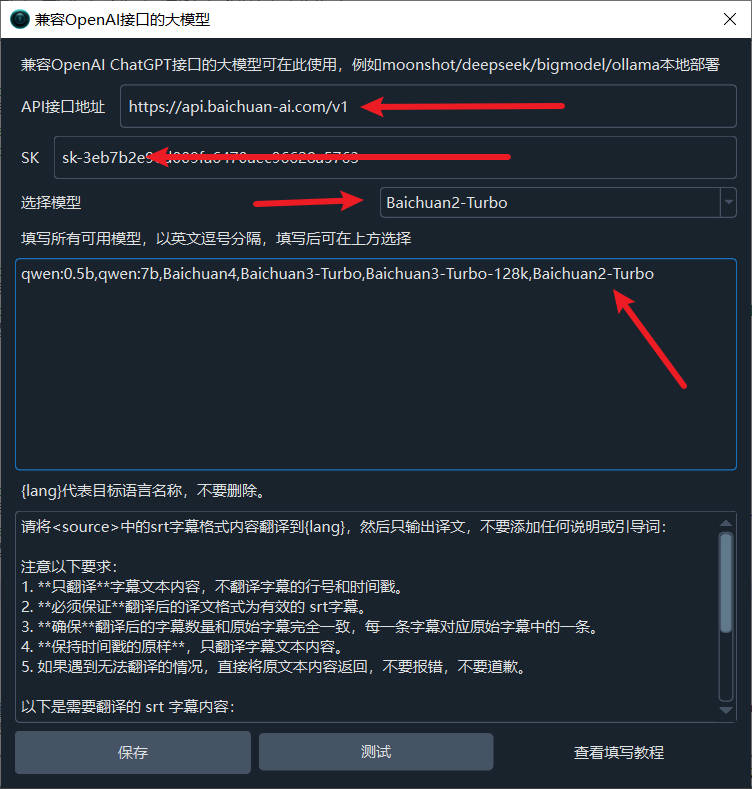
- Open the menu bar → Translation Settings → OpenAI ChatGPT API Settings
- In the API URL field, enter:
https://api.baichuan-ai.com/v1 - Enter the API key from the Baichuan platform in the SK field (get it at: https://platform.baichuan-ai.com/console/apikey)
- In the model text box, enter:
Baichuan4,Baichuan3-Turbo,Baichuan3-Turbo-128k,Baichuan2-Turbo - Select a model from the dropdown
- Click Test, then save after success
01.AI (零一万物)
| Setting | Value |
|---|---|
| API URL | https://api.lingyiwanwu.com/v1 |
| API Key | Get from https://platform.lingyiwanwu.com/apikeys |
| Model | yi-lightning |
Using Ollama for Local Model Deployment
Step 1: Install Ollama
- Go to https://ollama.com/download
- Download the installer for your operating system

- Run the installer and click Install to complete setup

Step 2: Download a Model
After installation, a command window will open automatically. Enter the following command to download the Qwen model:
ollama run qwen
Wait for the download to complete:

When you see "Success", the model deployment is complete.

The default API endpoint is
http://localhost:11434
How to reopen the command window? Press
Win+Q, search forcmd, open Command Prompt, and enterollama run qwen.


Step 3 (Optional): Install a GUI
If you prefer a graphical interface, install ChatBox for a better UI experience:
- Go to https://chatboxai.app/zh and download

- After installation, click "Start Setup"
- In settings, select "Ollama" as the AI model provider, enter
http://localhost:11434as the API domain, and selectQwen:latestas the model - Save and start using

Step 4: Configure in pyVideoTrans
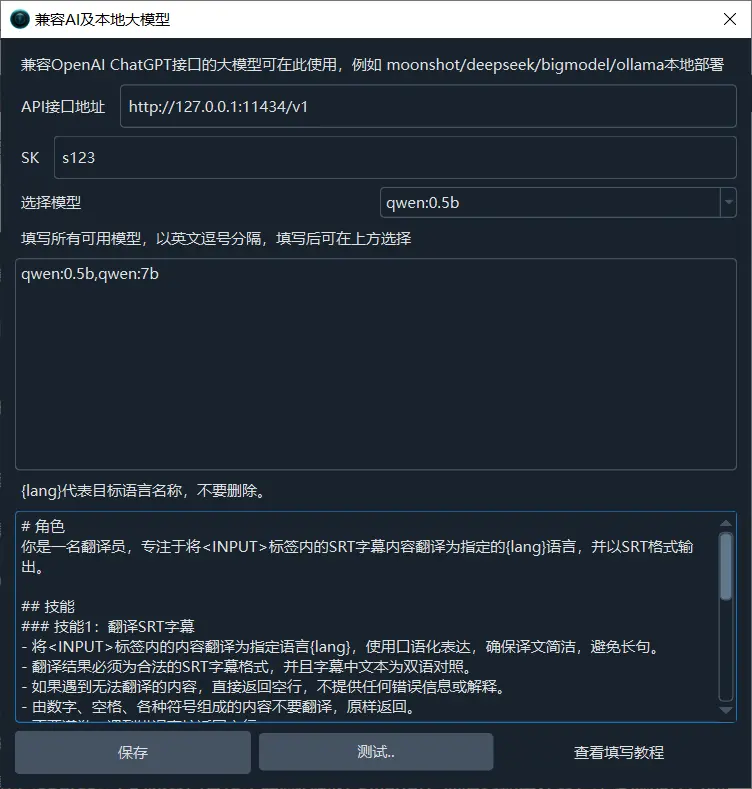
- Open Menu → Settings → OpenAI Compatible / Local LLM
- In the middle text box, add the model name (e.g.,
qwen— separate multiple models with commas) - In the API URL field, enter:
http://localhost:11434/v1 - Enter anything in the SK field (e.g.,
1234) - Select the model to use
- Click Test, then save after success

Step 5: Use Other Models
Beyond Qwen, Ollama supports many models. The process is just as simple:
- Browse all available models at https://ollama.com/library
- Copy the model name
- In the command window, run
ollama run <model-name>
For example, to install the openchat model:
ollama run openchat


Important Notes
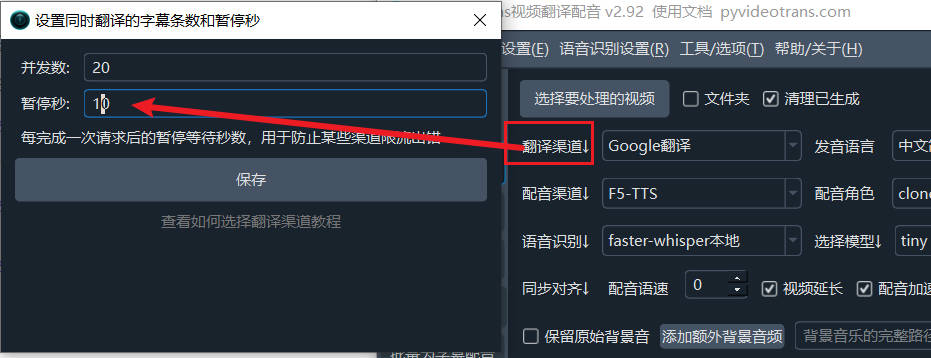
- Request rate limits: Most AI translation channels may limit requests per minute. If you see rate limit errors, click "Translation Channel ↓" on the main interface and increase the pause seconds to 10 — meaning a 10-second wait after each translation, capping at 6 requests per minute.
- Excessive blank lines in output: If the model you selected is not intelligent enough (especially smaller locally deployed models), it may fail to follow formatting instructions, resulting in many blank lines. You can try:
- Using a larger model
- Going to Menu → Tools/Options → Advanced Options → Send full subtitle content when using AI translation, and unchecking it

Troubleshooting
| Issue | Cause | Solution |
|---|---|---|
| Failed to connect to Ollama | Ollama not running | Make sure the Ollama service is running (port 11434) |
| API URL incorrect | Format wrong | Local models should use http://localhost:11434/v1 |
| Empty translation result | Model capability insufficient | Try a larger model (e.g., 14B or 32B version) |
| Slow local model translation | Insufficient hardware resources | Use GPU acceleration, or choose a smaller model |