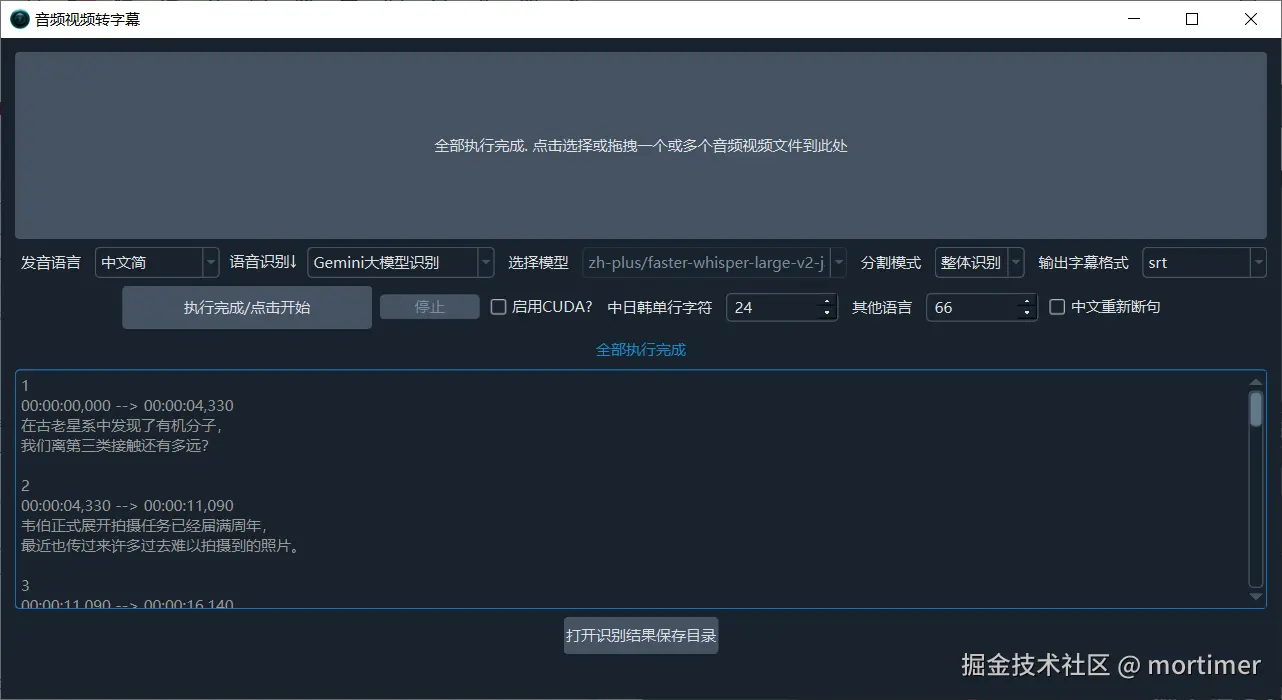
Gemini AI is not only an excellent large language model for chat, but also a superb tool for speech recognition and audio/video transcription. It offers over 1,500 free API calls daily, which is sufficient for most everyday needs.
How to Activate Gemini AI Service
First, you need to visit the Gemini AI online Studio page: https://aistudio.google.com/. Try to see if you can open it.
- A VPN/Proxy is a Prerequisite: This might be the only barrier to using Gemini AI. Sometimes, even with a VPN enabled, visiting the above URL might still show a "Country/region not supported" message.
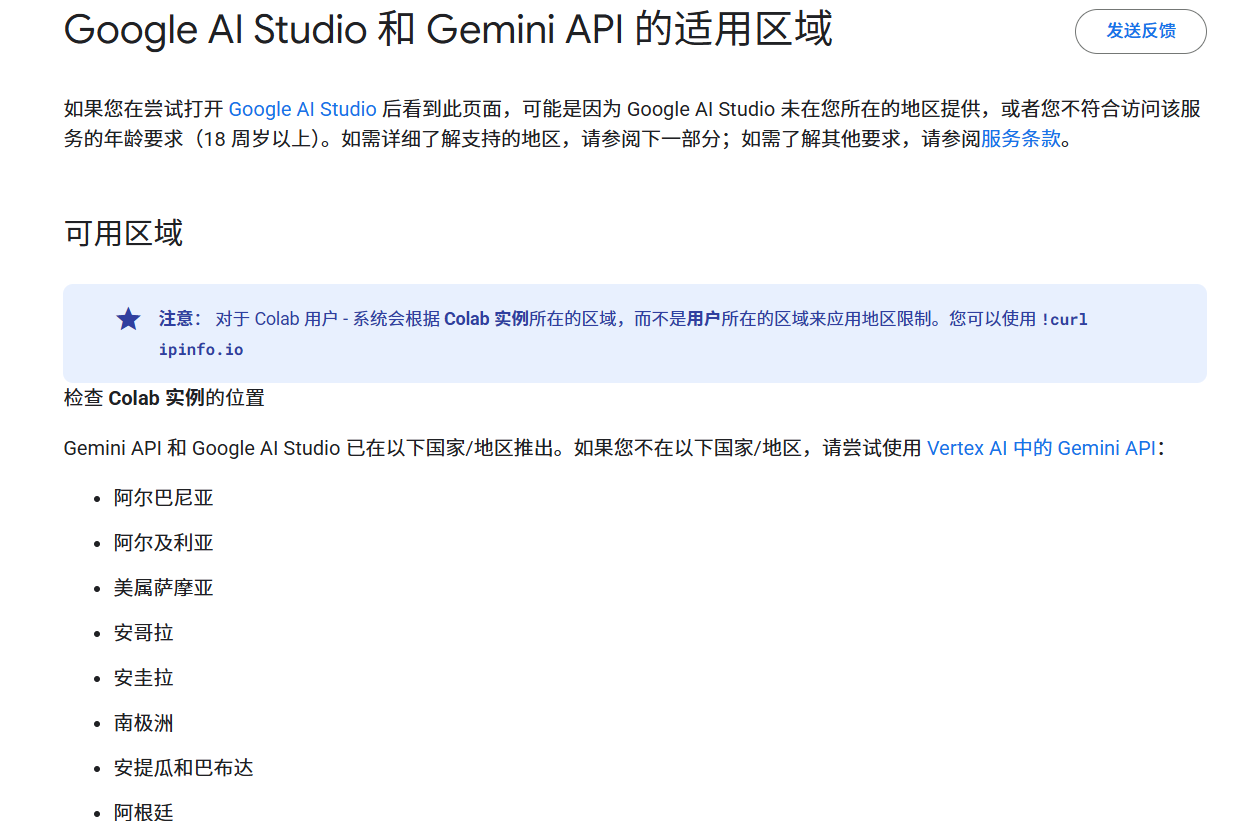
In this case, you need to try switching your VPN server node until the page loads correctly and displays an interface like the one shown below:
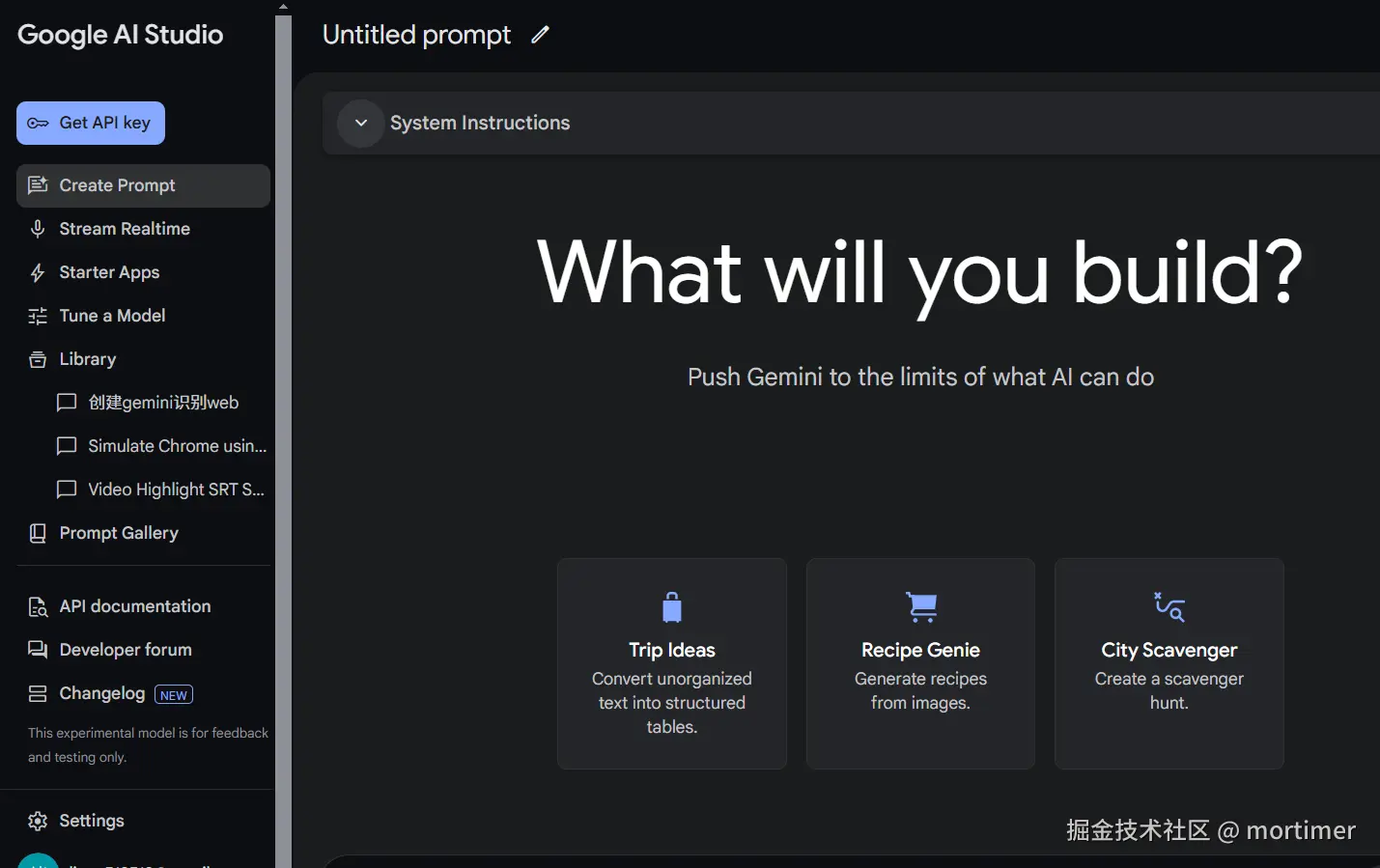
Get Your API Key: In the top-left corner of the page shown above, you will see a Get API Key button. Click it and then create a new key.
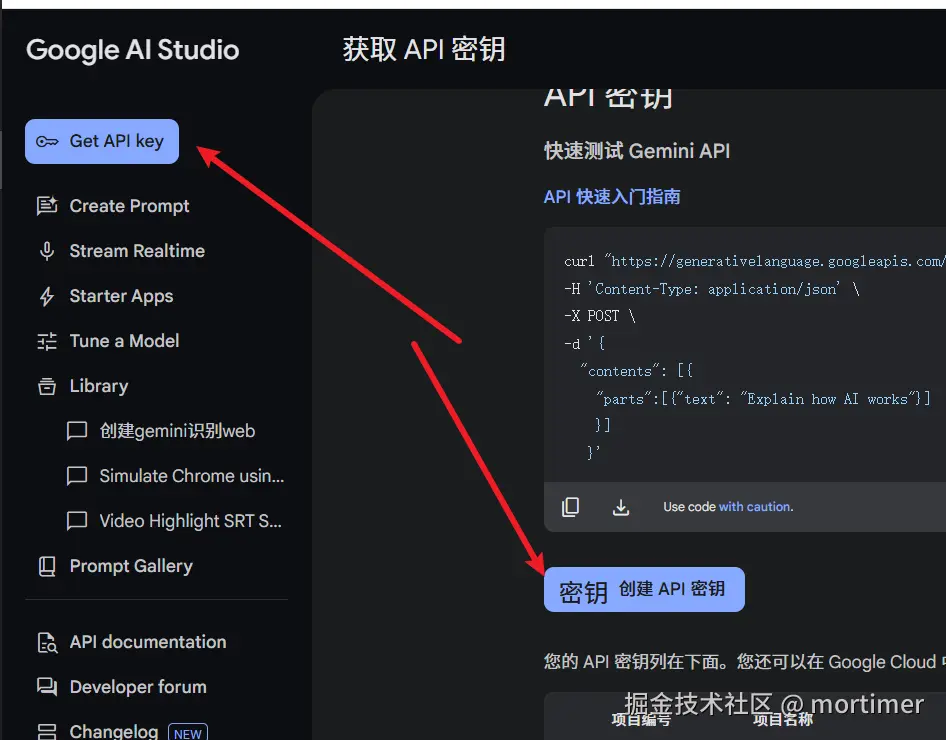
Paste the API Key: Paste the API Key you obtained into the pyVideoTrans software. To do this, open the software's settings menu, find the "Gemini Pro Gemini Key" option, and paste your key there.
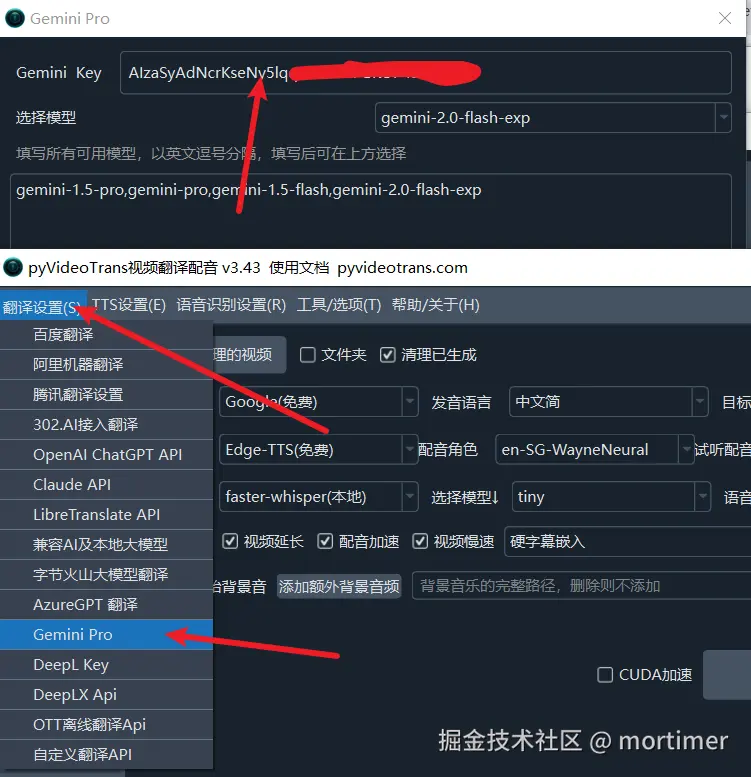
Using It in Video Translation & Dubbing Software
First, please update to the v3.07 patch version.
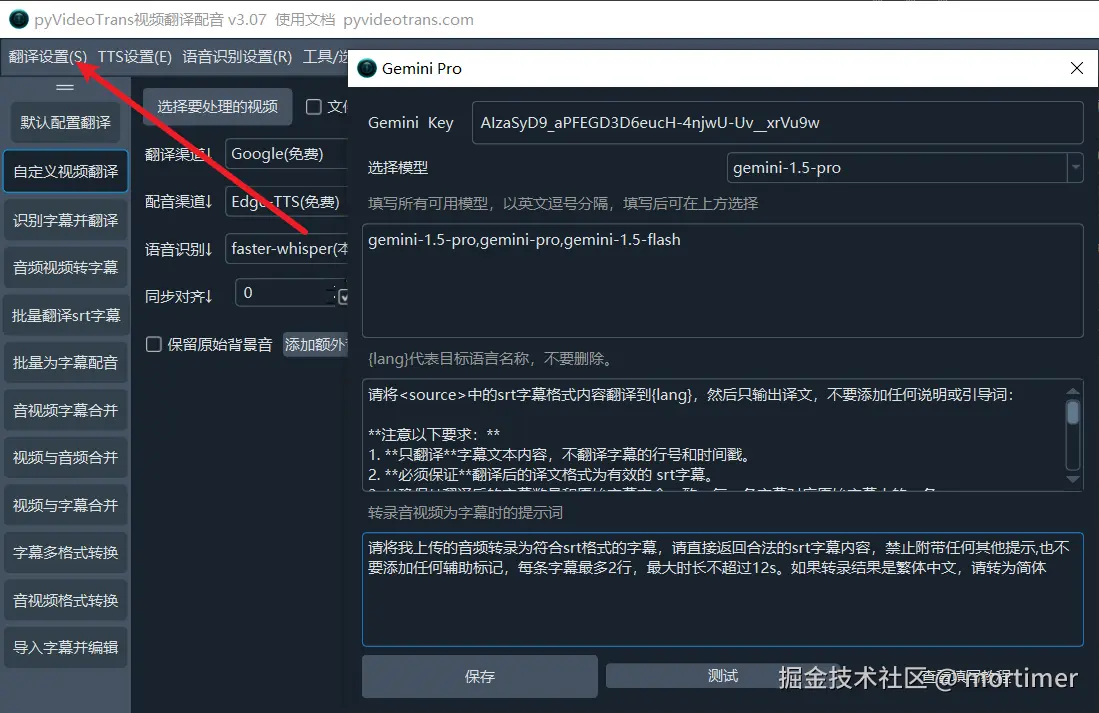
- First, go to Menu Bar -> Translation Settings -> Gemini Pro. Here, fill in your Key, select the model to use, and you can also modify the transcription prompt here.
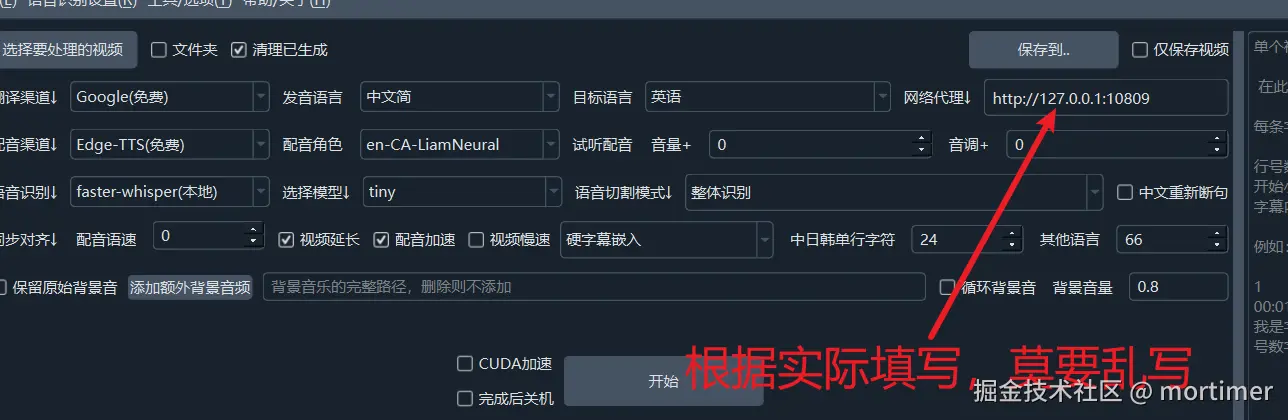
- Don't forget to enable your proxy/VPN, otherwise errors are guaranteed.
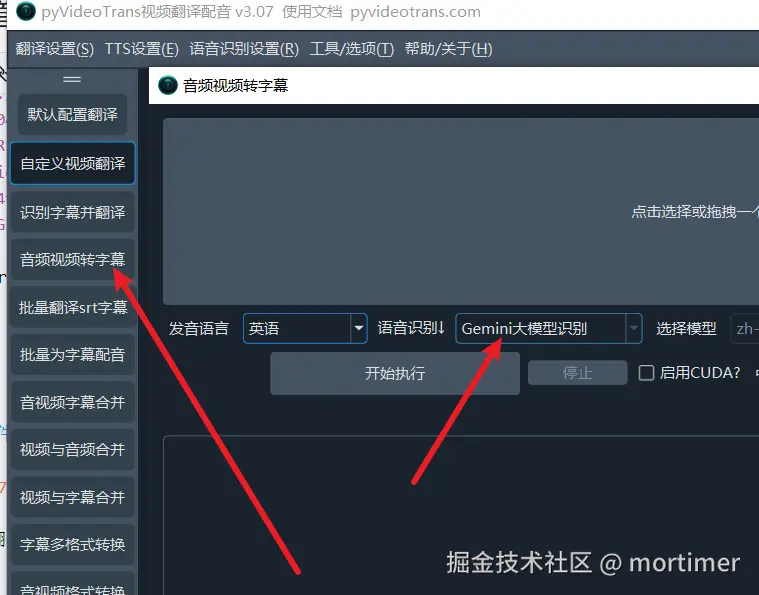
- In the Speech Recognition Channel, select
Gemini Large Model Recognition. Upload your audio/video file, choose the spoken language. Do not check theChinese Re-segmentationbox. Gemini's own segmentation is quite good, and checking this box might actually worsen the results.
- Wait for the recognition results. If you're not satisfied, you can adjust the prompt and try again.