
How to Add New Target Language Codes in pyVideoTrans
Starting from version v4.11, the method for adding new languages has been improved. The guide below applies to version v4.11 and above.
pyVideoTrans comes with built-in support for over 30 common target languages. If you need to translate or dub into other less common languages, follow the steps below to add them manually.
⚠️ Important Notice Before Adding
Before you start, please confirm: Do your chosen translation and dubbing services actually support this language?
- Many dubbing (TTS) services (such as F5-TTS) only support major languages and do not support less common ones;
- Some translation services (such as DeepL) also have a limited list of supported languages;
- Some speech recognition (ASR) services (such as Qwen-ASR) only support certain languages as well.
Note: If a service provider does not natively support the language, it will still fail and throw an error when running, even if you successfully add it to the software.
Step 1: Look Up the Language Codes for Each Service
Different translation and recognition services use different "codes" for the same language. For example, for [Simplified Chinese]:
- Google Translate uses
zh-CN - DeepL uses
ZH-HANS - Faster-whisper recognition uses
zh - Standard embedded subtitle uses
zho
Please check the links below to find the specific code for your target language:
Google Translate: Click to check supported language codes (e.g., Chinese is
zh-CN)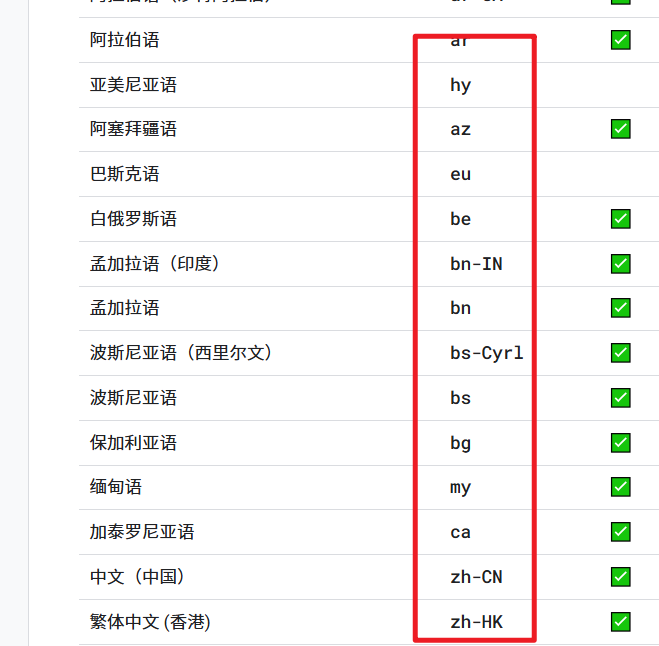
Tencent Translation: Click to check supported language codes (e.g., Chinese is
zh)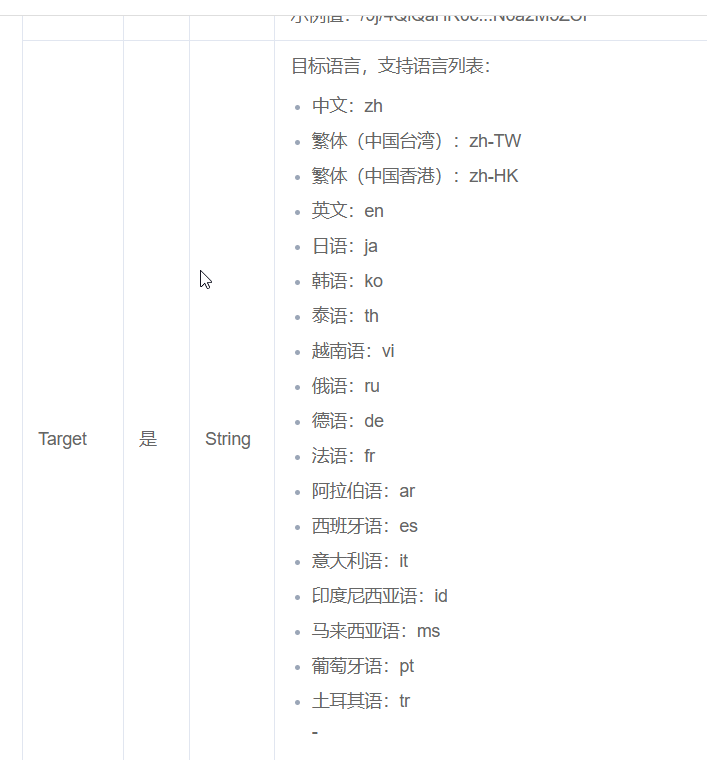
Baidu Translation: Click to check supported language codes (e.g., Chinese is
zh)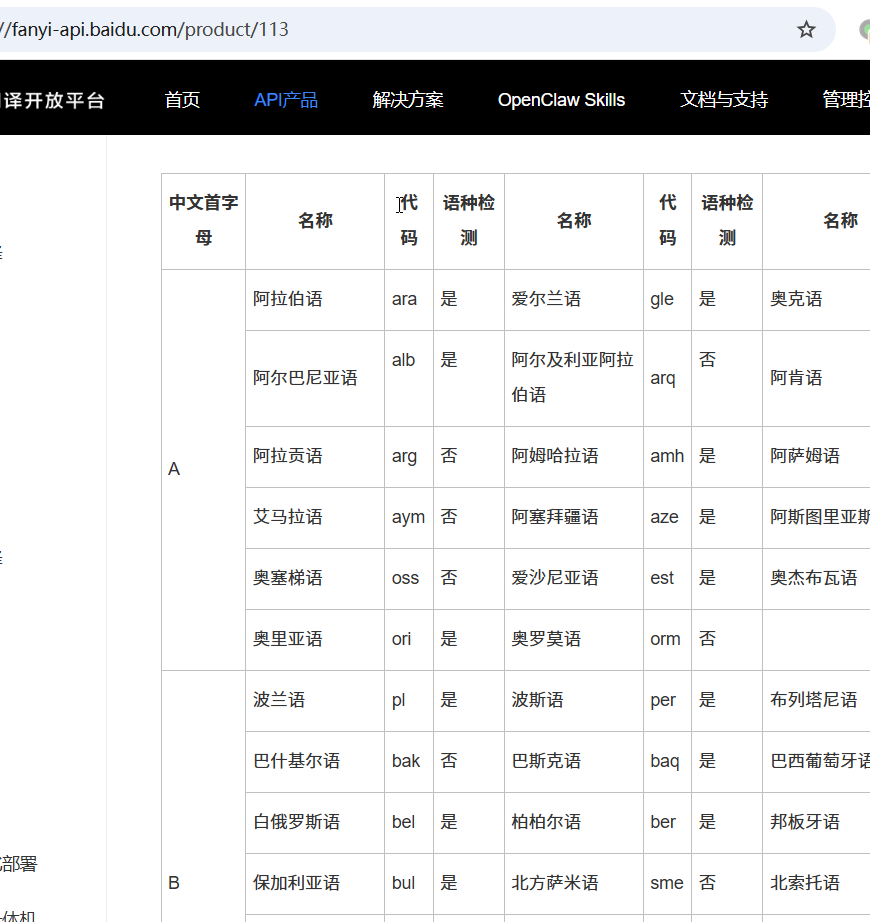
DeepL / DeepLX: Click to check supported language codes (e.g., Chinese is
ZH-HANS)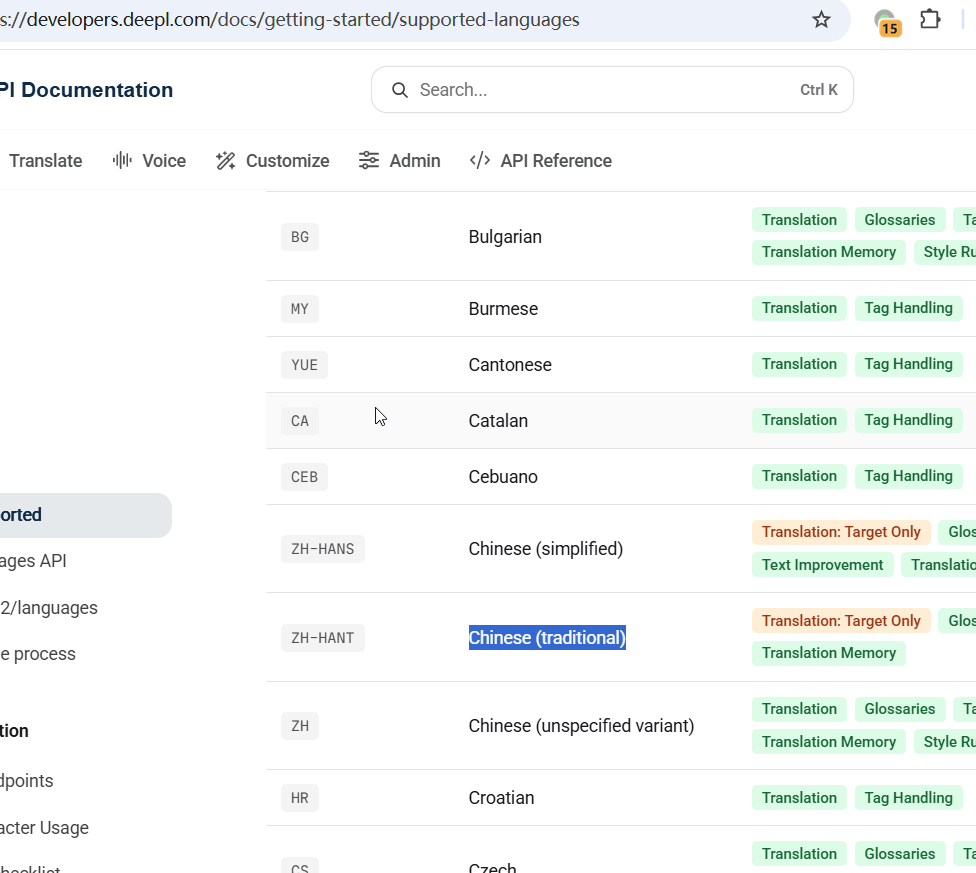
Microsoft Translator: Open webpage (e.g., Chinese is
zh-Hans. Usually matches Google; you can also press F12 to inspect developer tools)Alibaba Machine Translation: Click to check supported language codes (e.g., Chinese is
zh)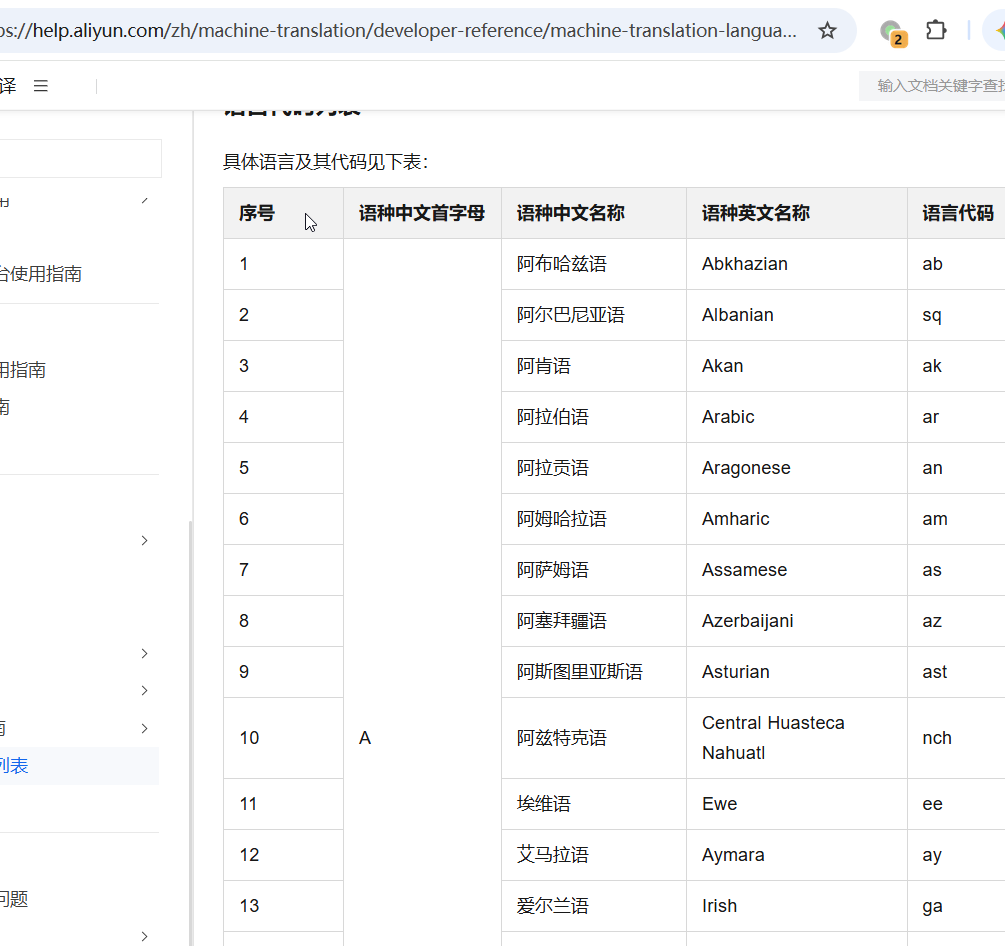
Alibaba Bailian API: Click to check supported language codes (e.g., Chinese is
Chinese)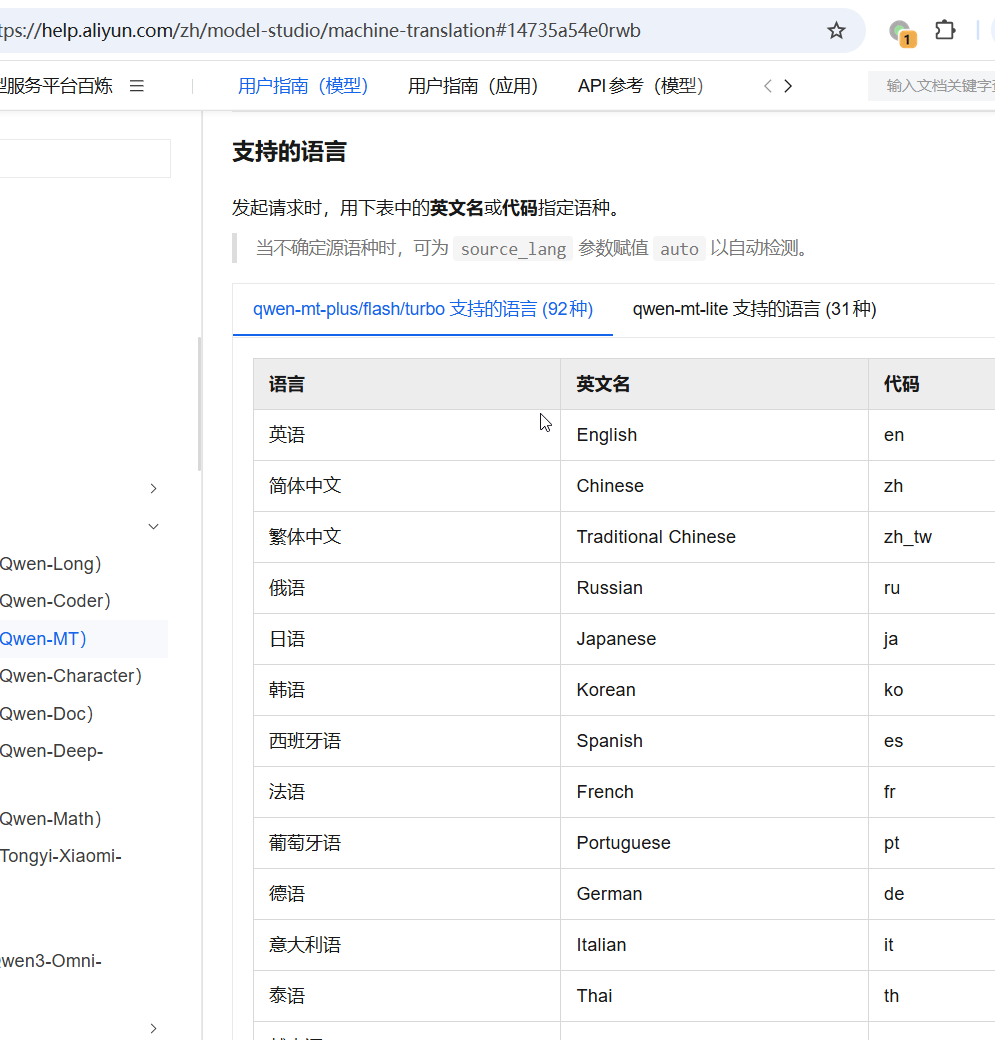
M2M100: Click to check supported language codes (e.g., Chinese is
zh; extract the 2–3 letters inside the underscores__xx__)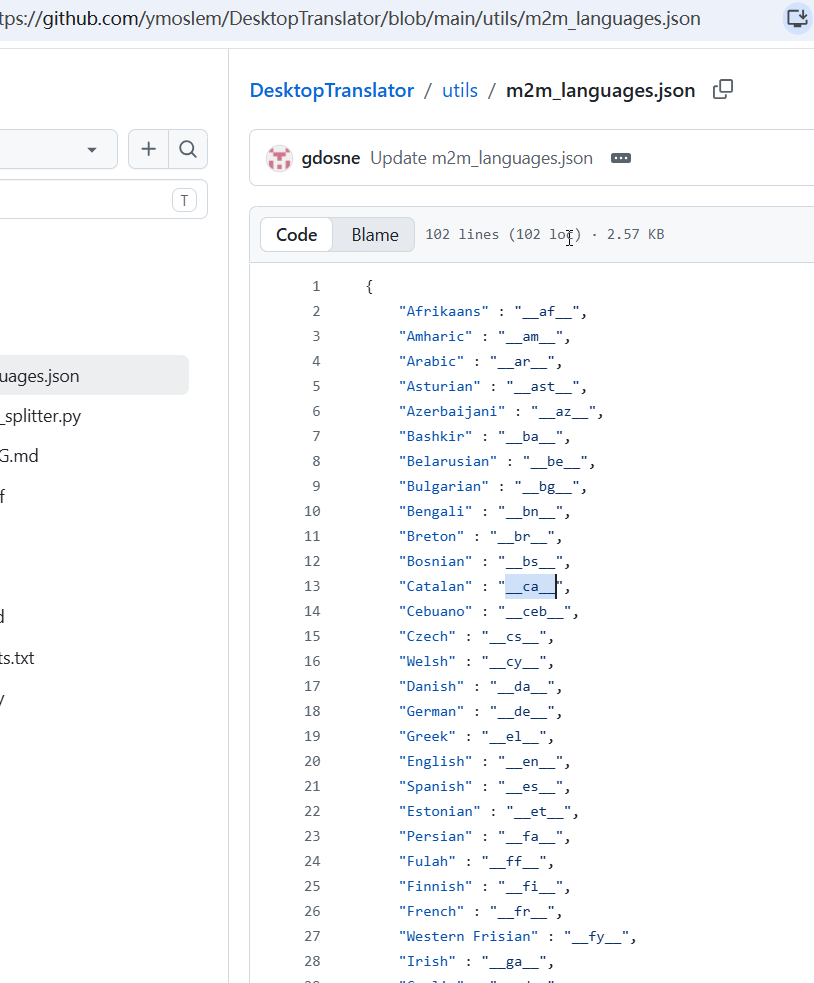
AI Translation (ChatGPT / Claude, etc.): Enter the full English name of the language directly (e.g., enter
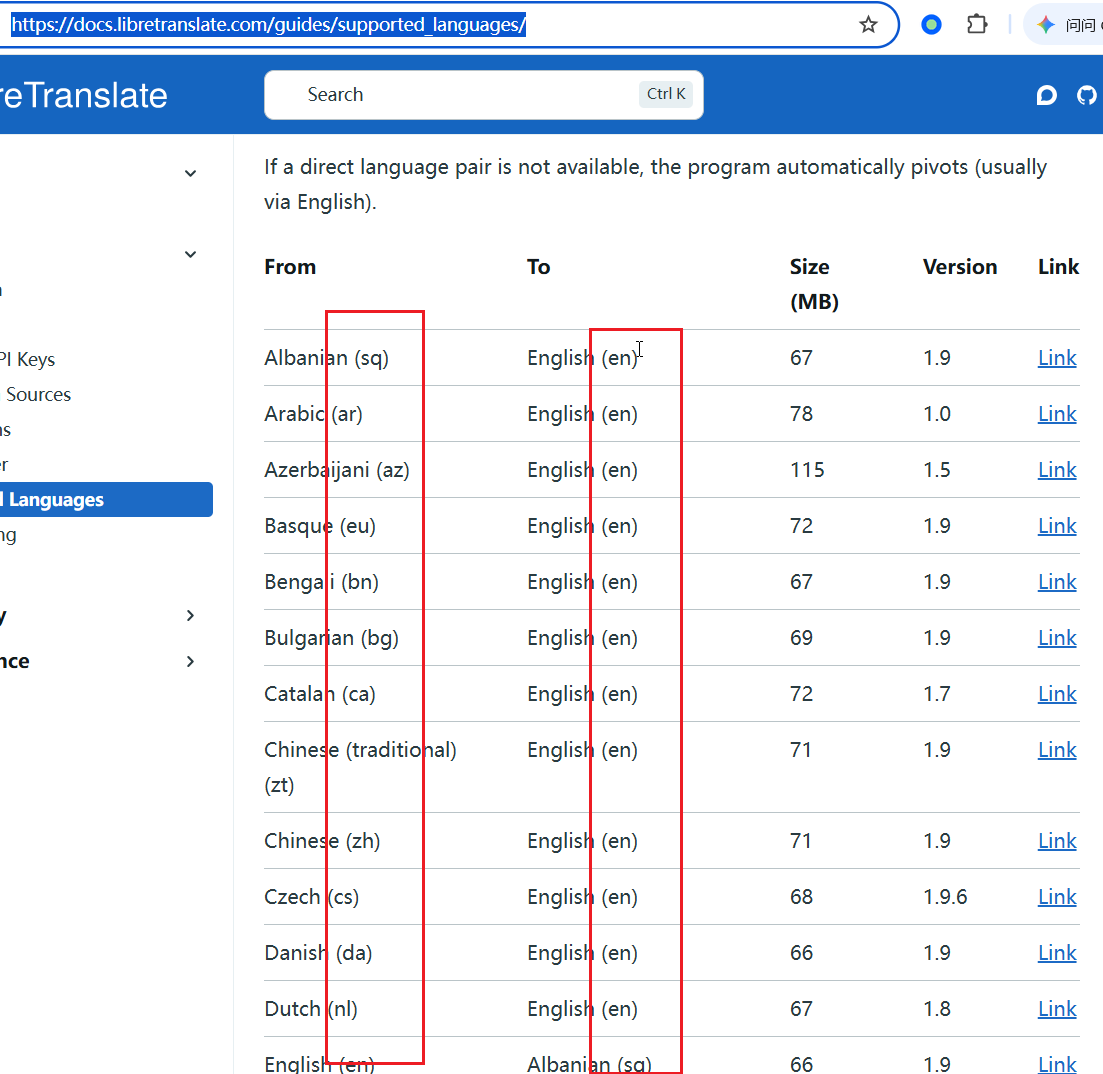
Simplified Chinesefor Chinese).LibreTranslate: Click to check supported language codes (the 2–3 letter code in parentheses)
Subtitle Embedding Code (Required): When embedding soft subtitles, a standard 3-letter ISO code is required. Find your language in the list below and use the 3-letter code from the
Set2column (if split intoT/B, use theTcolumn; for example, Chinese iszho):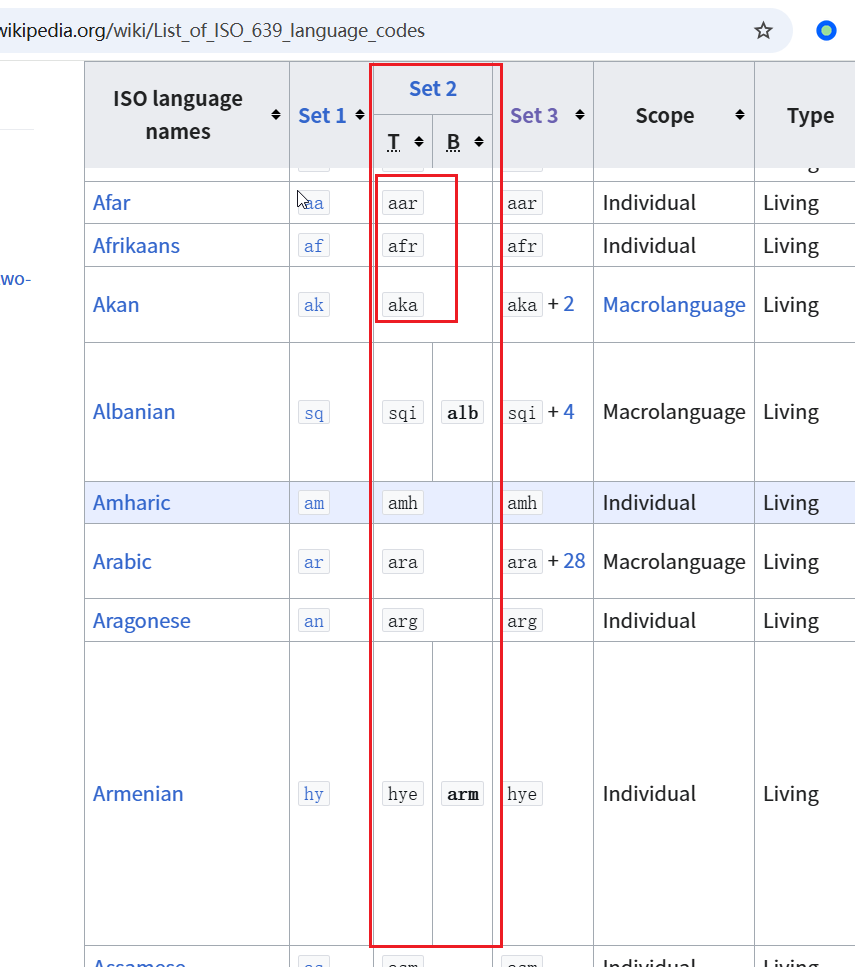
Step 2: Assemble Your Code Snippet
Fill the codes you found into the template below:
💡 Tips:
- If you don't plan to use a specific translation service, you can simply write
No(case-sensitive).- The
Subtitle embedding codeon the 2nd line must be filled in correctly, otherwise soft subtitles will fail to embed properly.
"google_language_code_in_lowercase": [
    "Google Translate language code",
    "3-letter subtitle embedding language code",
    "Baidu Translation language code",
    "DeepL language code",
    "Tencent Translation language code",
    "LibreTranslate language code",
    "Microsoft Translator language code",
    "AI full English language name",
    "Alibaba Machine Translation language code",
    "Alibaba Bailian API language code",
    "M2M100 language code"
][Example] Here is the complete format for Simplified Chinese:
"zh-cn": [
    "zh-cn",
    "zho",
    "zh",
    "ZH-HANS",
    "zh",
    "zh",
    "zh-Hans",
    "Simplified Chinese",
    "zh",
    "Chinese",
    "zh"
]Step 3: Add to the languages.json Configuration File
- Open the
languages.jsonfile inside thevideotransfolder under the software's root directory (Notepad or VSCode is recommended). - Paste the code snippet you just assembled inside the curly braces
{ }. - Important Detail: Each language block must be separated by an English half-width comma
,. Do not put a comma after the very last entry.
[Example of where to paste]:
{
    "ar-st": [
        "es",
        "spa",
        "spa",
        "ES-419",
        "es",
        "es",
        "es",
        "Spanish",
        "es",
        "Spanish",
        "es"
    ],
    "zh-cn": [
        "zh-cn",
        "zho",
        "zh",
        "ZH-HANS",
        "zh",
        "zh",
        "zh-Hans",
        "Simplified Chinese",
        "zh",
        "Chinese",
        "zh"
    ]
}- Save the file and restart the software. You will now see your new language code in the target language drop-down list.
Step 4 (Optional): Customize the Display Name in the UI
By default, the software drop-down menu will show the raw language code (e.g., zh-cn). If you want it to display a friendlier name (such as "Simplified Chinese"), follow these steps:
- Open the file:
Software Directory/videotrans/language/en.json(for English UI) orSoftware Directory/videotrans/language/zh.json(for Chinese UI); - Scroll to the very bottom of the file. Look at the line right before the final closing brace
}to check if it ends with an English comma,; - If there is no comma, add an English comma
,at the end of that line, then add a new line:jsonFor example:"google_language_code_in_lowercase": "The name you want displayed in the software""zh-cn": "Simplified Chinese" - Save the file and restart the software to apply changes.
❓ Troubleshooting Common Errors
If the software crashes or shows an error upon launch after modifying the files, it is almost certainly (99% of the time) caused by a JSON syntax error. JSON files require strict formatting. Please double-check the following:
- Punctuation characters: All punctuation marks (
",,,:,{},[]) must be standard half-width English symbols. Do not use full-width or non-English quotes and commas. - Missing or extra commas: Make sure there is a comma
,between language blocks, and ensure there is no trailing comma after the very last entry.
Method for adding languages in versions prior to v4.11
Create a plain text file named newlang.txt under the Software Directory/videotrans/ folder. Then, enter the target language code (e.g., pa-PK) on the first line. If you want to add multiple language codes, put one per line as shown below:
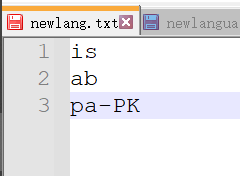
Save the file, then restart the software.
Note: If the translation or dubbing service does not support the target language, an error will occur.