
When deploying AI projects like pyVideoTrans, F5-TTS, or Index-TTS, uv and ffmpeg are essential foundational tools.
Many friends have downloaded the software but encounter errors when running the source code:
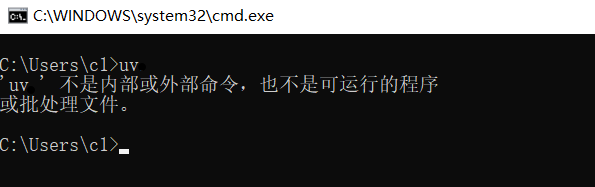
This is because the Windows system doesn't know where these tools are "hidden." This article will guide you step-by-step with images on how to add them to your system's environment variables.
1. Preparation
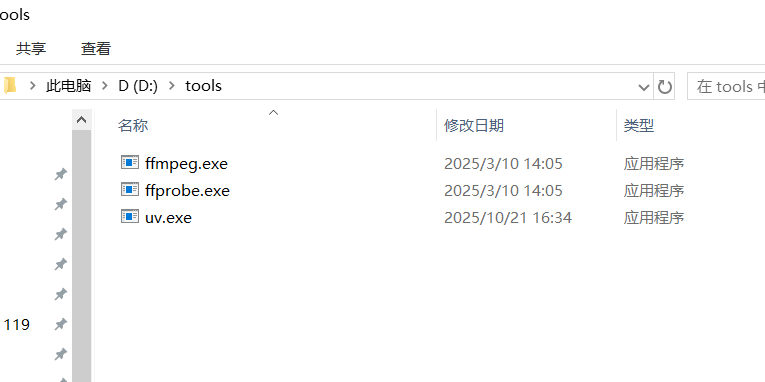
First, please ensure you have downloaded and extracted the relevant tools. Assume you have placed uv.exe and ffmpeg.exe together in the D:/tools folder, as shown below:
Note: Ensure you can directly see the
.exefiles inside this folder.
2. Configuration Steps
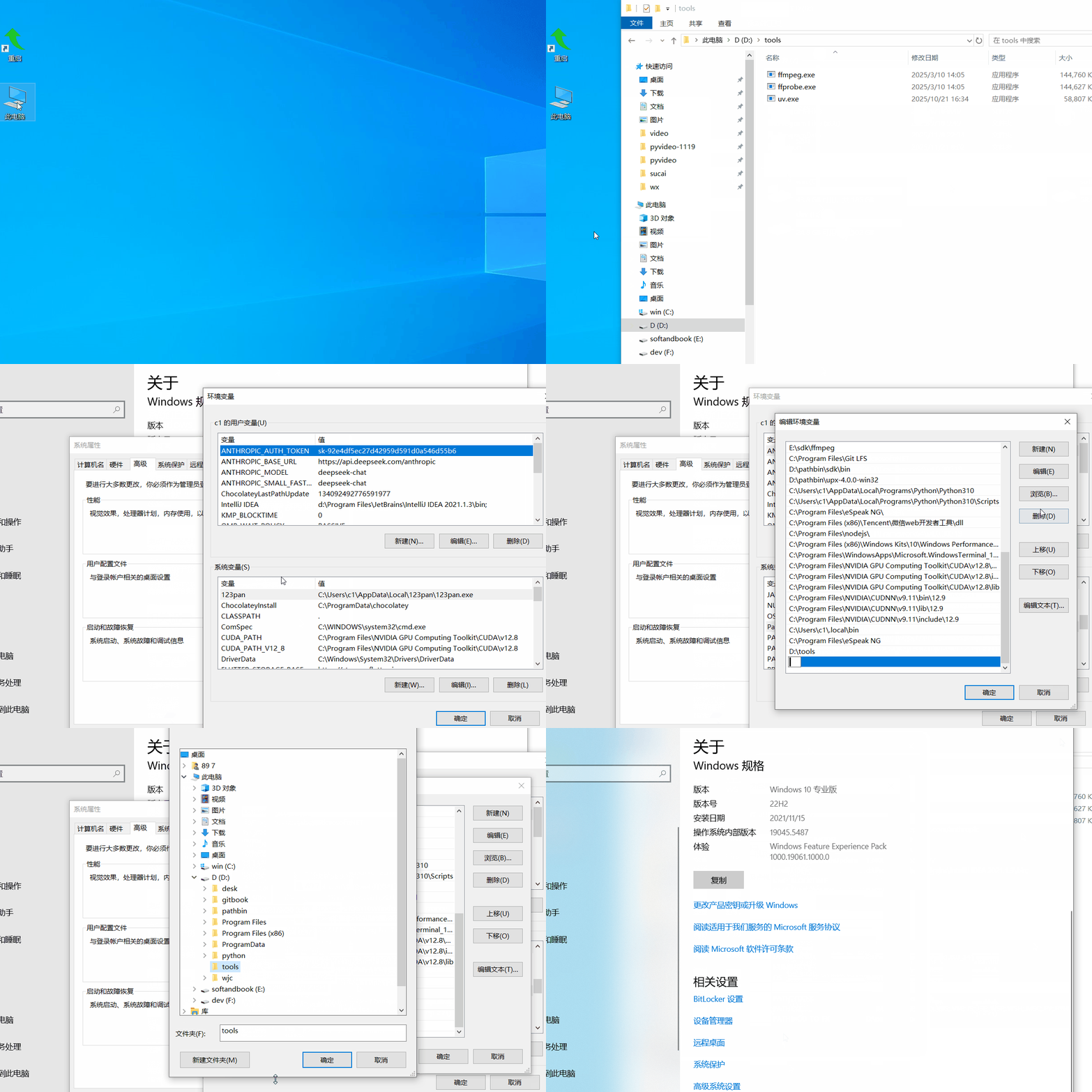
1. Open System Properties Return to your computer desktop, find the 【This PC】 icon, right-click on it, and select 【Properties】 at the bottom. (Tip: Windows 11 users, if you don't see Properties on the right-click menu, click "Show more options")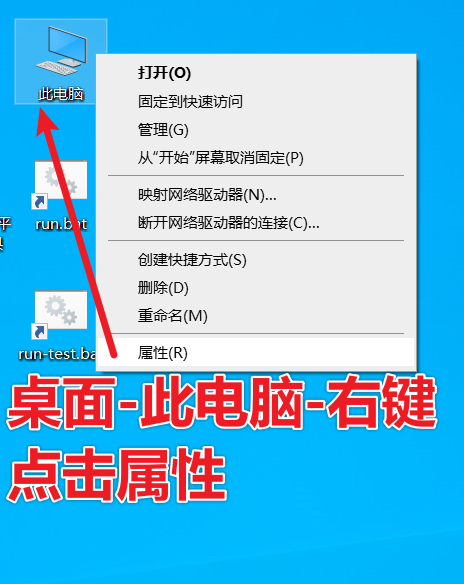
2. Access Advanced Settings In the settings panel that pops up, scroll down to the bottom, find and click on 【Advanced system settings】. 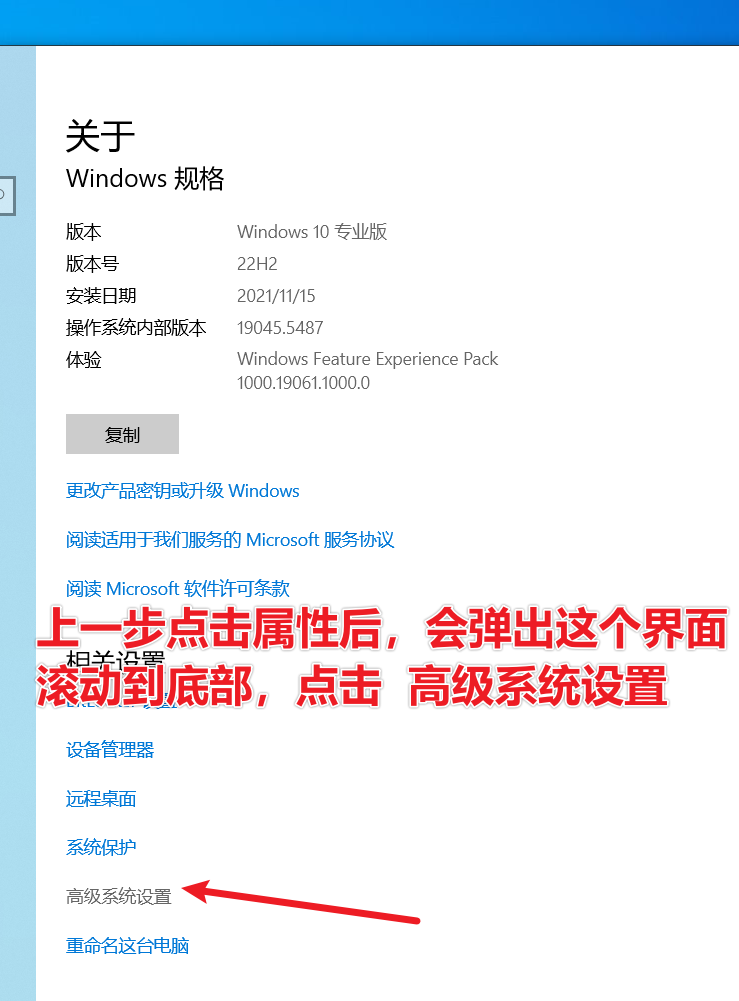
3. Open Environment Variables In the small "System Properties" window that appears, click the 【Environment Variables】 button at the bottom right. 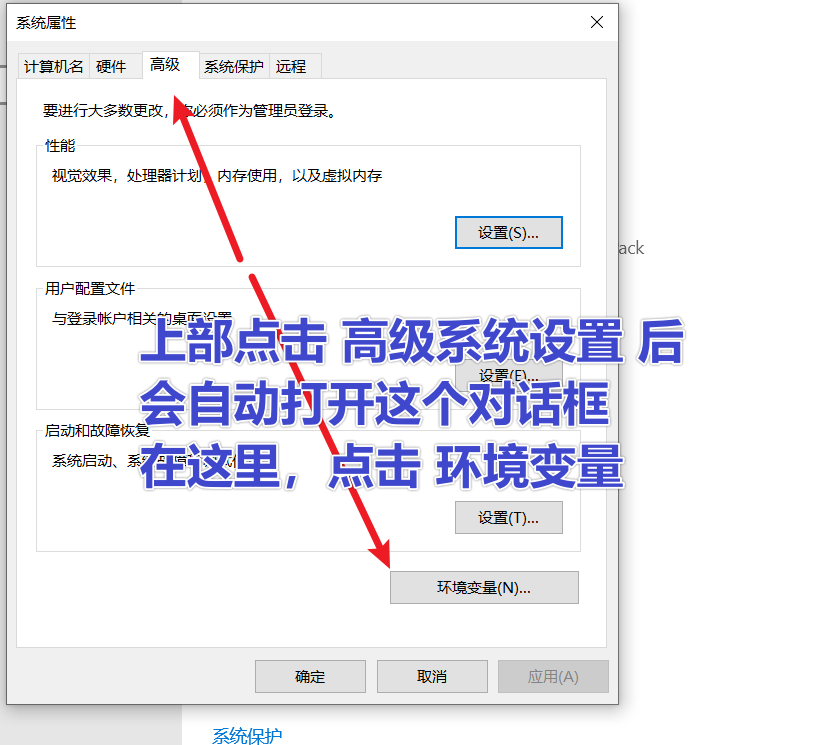
4. Edit the Path Variable (Key Step) In the lower "System variables" section, find the line named Path, select it, and then click 【Edit】 (or simply double-click on the Path line). 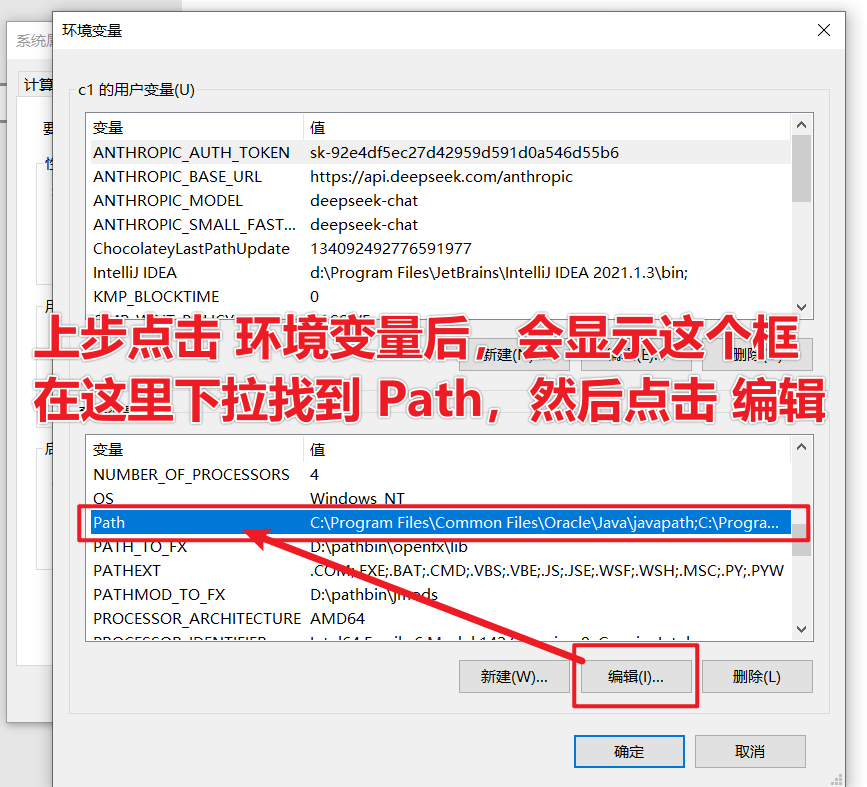
5. Add the Path In the list that pops up, click 【New】 in the top right corner, then click 【Browse】. 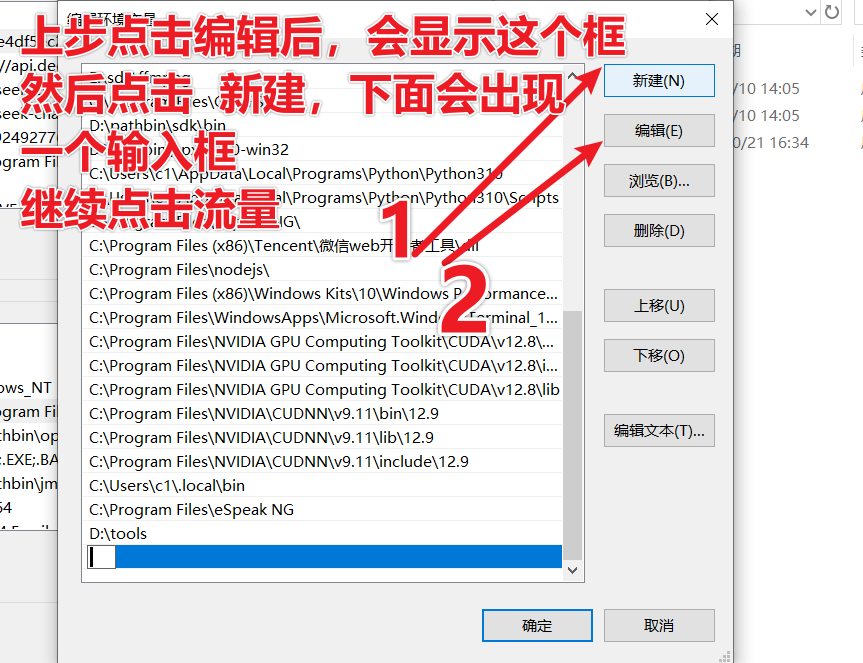
6. Locate the Folder In the browse dialog, navigate through This PC -> D: -> tools (or the folder where you placed the exe files), and click OK. 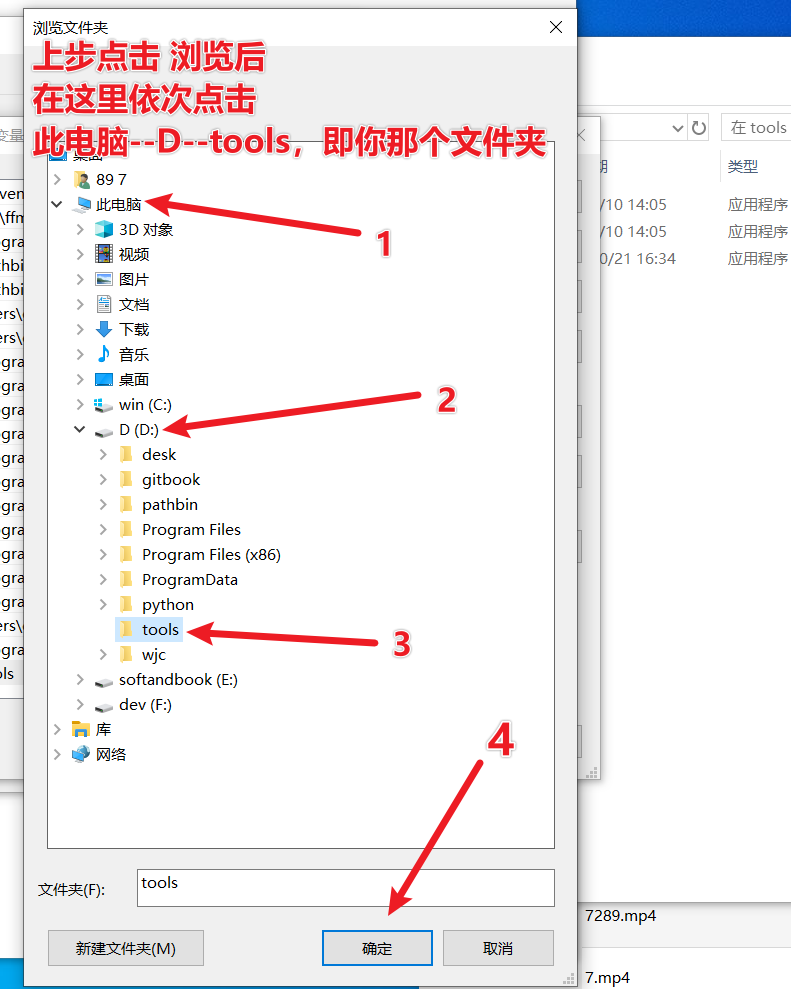
7. Save Settings Finally, you must click 【OK】 on all pop-up windows consecutively until all windows are closed for the settings to take effect.
3. Verify Success
- Press the
Win + Rkeys on your keyboard, typecmd, and press Enter.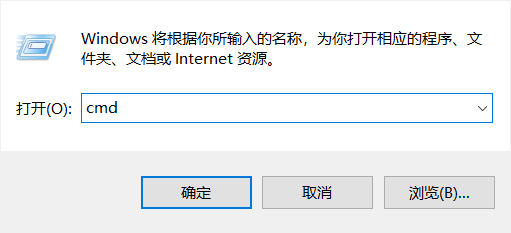
- In the black command window, type
uv --versionorffmpeg -version. - If a version number appears, the setup is successful! If it still says "is not recognized as an internal command," please restart your computer and try again.
Appendix: Tool Download Links
- uv.exe: Download and extract.
- ffmpeg.exe: Download and extract, enter the
binfolder, and place the 3 exe files inside into your tools directory.